


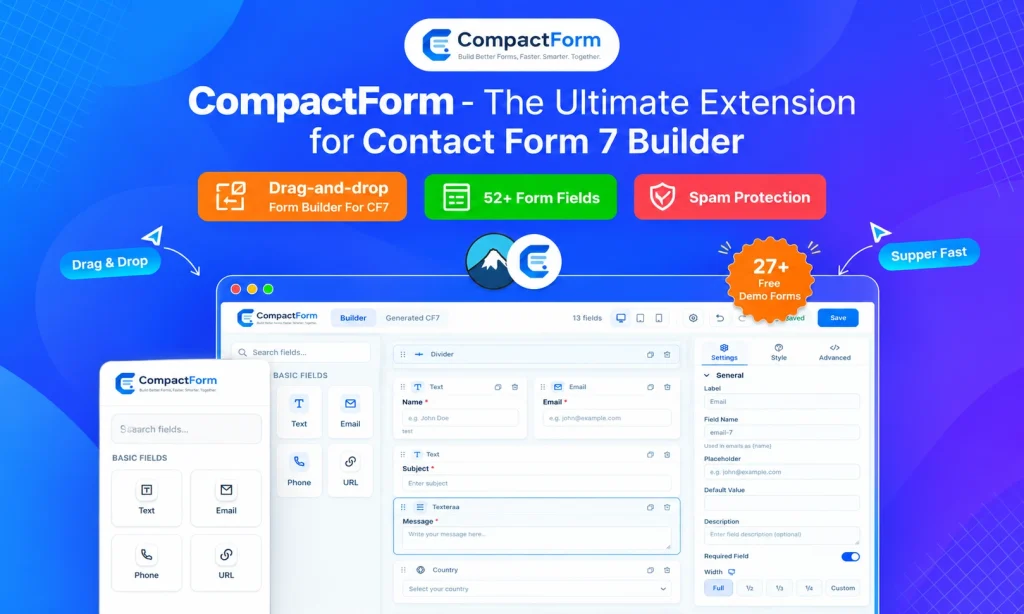
Creating a simple form in Contact Form 7 is easy. You can add a Name field, Email field, Message box, and Submit button in just a few minutes.
The challenge starts when your form needs more than the basics.A business form may need multiple field types, custom layouts, conditional questions, file uploads, spam protection, custom styling, email templates, and connections to other services. Managing all of these options through shortcodes can take more time and make the form harder to maintain.
CompactForm – Drag & Drop Form Builder for Contact Form 7 provides a visual solution.
It adds a drag-and-drop builder on top of Contact Form 7, allowing you to create and manage forms from a visual canvas. You can add fields, move them around, control their layout, style individual fields, create conditional rules, and preview your form while working.
The important part is that CompactForm does not replace Contact Form 7. Your forms remain Contact Form 7 forms underneath, so you can continue using the Contact Form 7 workflow and ecosystem you already know.
What Is CompactForm?
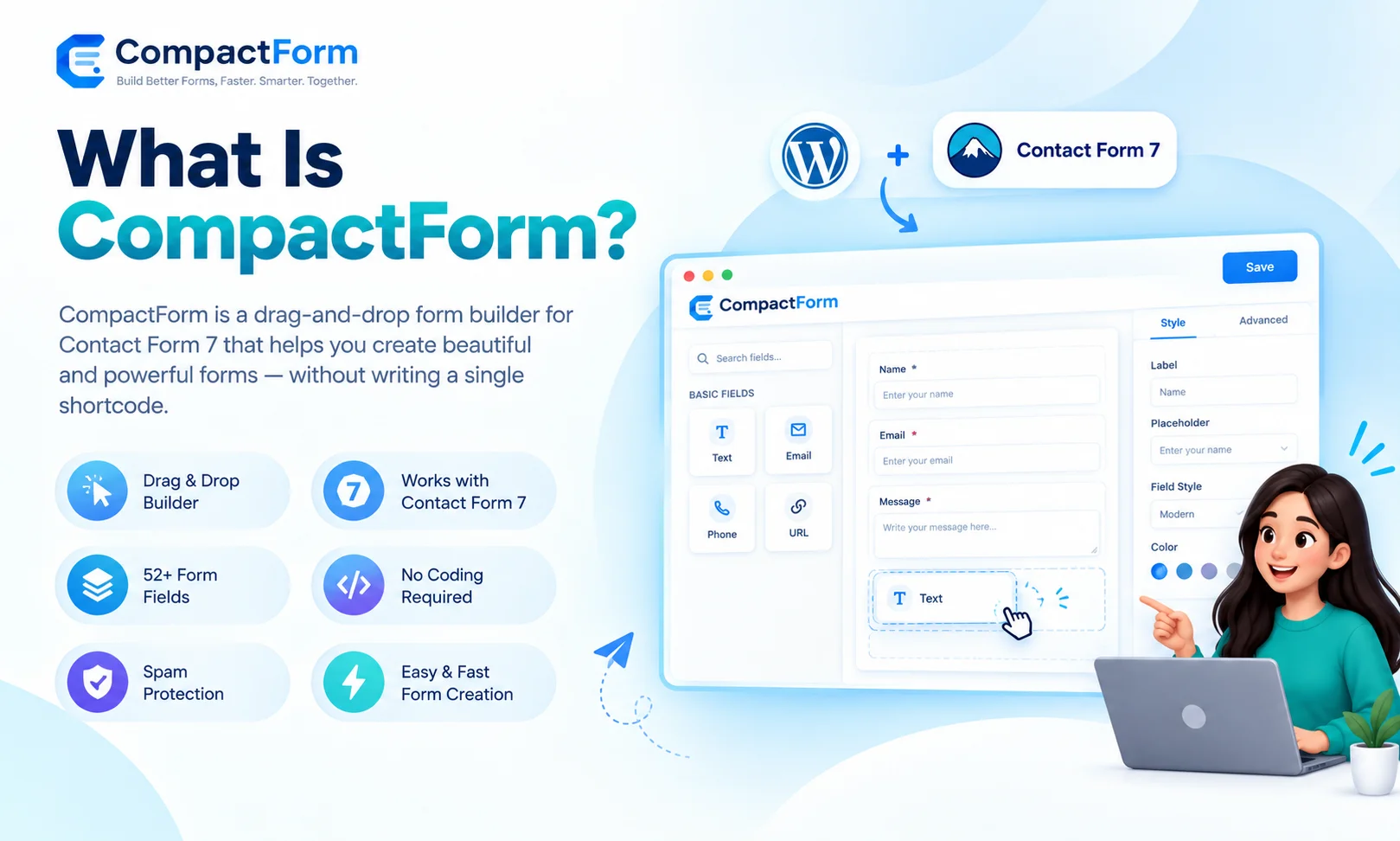

CompactForm is a visual form builder made specifically for Contact Form 7.
Normally, creating a form with Contact Form 7 involves working with shortcode markup. This works well for simple forms, but a large form can quickly become difficult to organize.
CompactForm changes the editing experience.
Instead of manually writing and arranging shortcodes, you can open the visual builder and drag fields onto a canvas. You can then reorder fields, configure their settings, change their appearance, and build the structure of the form visually.
It is designed for both beginners and experienced WordPress users. Beginners can create forms without learning every Contact Form 7 shortcode, while experienced users can use the visual interface to speed up repetitive form-building work.
Why Use a Visual Contact Form 7 Builder?
The main problem with a complex form is not usually adding one field. It is managing everything around that field.
Imagine creating a project inquiry form that contains:
- Name and email fields
- Phone number
- Company information
- Service selection
- Budget range
- File upload
- Project details
- Conditional questions
- Consent checkbox
- Spam protection
- Custom email notification
With a shortcode-based workflow, you have to keep track of the field markup and the relationship between different fields.
A visual builder gives you a clearer picture of the form. You can see the structure while building it, move fields without manually editing markup, and manage settings from the builder interface.
This makes CompactForm especially useful when a Contact Form 7 project becomes larger than a basic contact form.
Stop Writing Form Code by Hand


With Contact Form 7 on its own, you often have to manage two important parts manually: the form itself and the email it sends.
1. The Form Markup
Even a simple two-column contact form can require markup such as:
<div class=”cf-row”>
<div class=”cf-col”>
<label>Your Name [text* your-name]</label>
</div>
<div class=”cf-col”>
<label>Your Email [email* your-email]</label>
</div>
</div>
<label>Your Message [textarea* your-message]</label>
[submit “Send Message”]
And that is only the form markup.
You may still need CSS to make the columns work correctly, control spacing, and match the design of your WordPress theme.
As the form becomes larger, manually maintaining the structure can become harder.
2. The Email
The email configuration is another part of the process.
You need to configure settings such as:
- To
- From
- Subject
- Reply-To
- Message Body
You also need to make sure the relevant mail tags are included in the message.
If you want a more structured HTML email, you may need to create the HTML structure yourself.
For example:
<table role=”presentation” width=”100%” style=”background:#f1f5f9;”>
<tr>
<td style=”background:#0091fa;padding:28px 32px;”>
New Submission: Contact Form
</td>
</tr>
<tr>
<td>Your Name</td>
<td>[your-name]</td>
</tr>
</table>
Now imagine adding another field to the form.
You may also need to update the email template so the new information appears in the notification.
That is where the visual workflow of CompactForm becomes useful.
How CompactForm Handles It
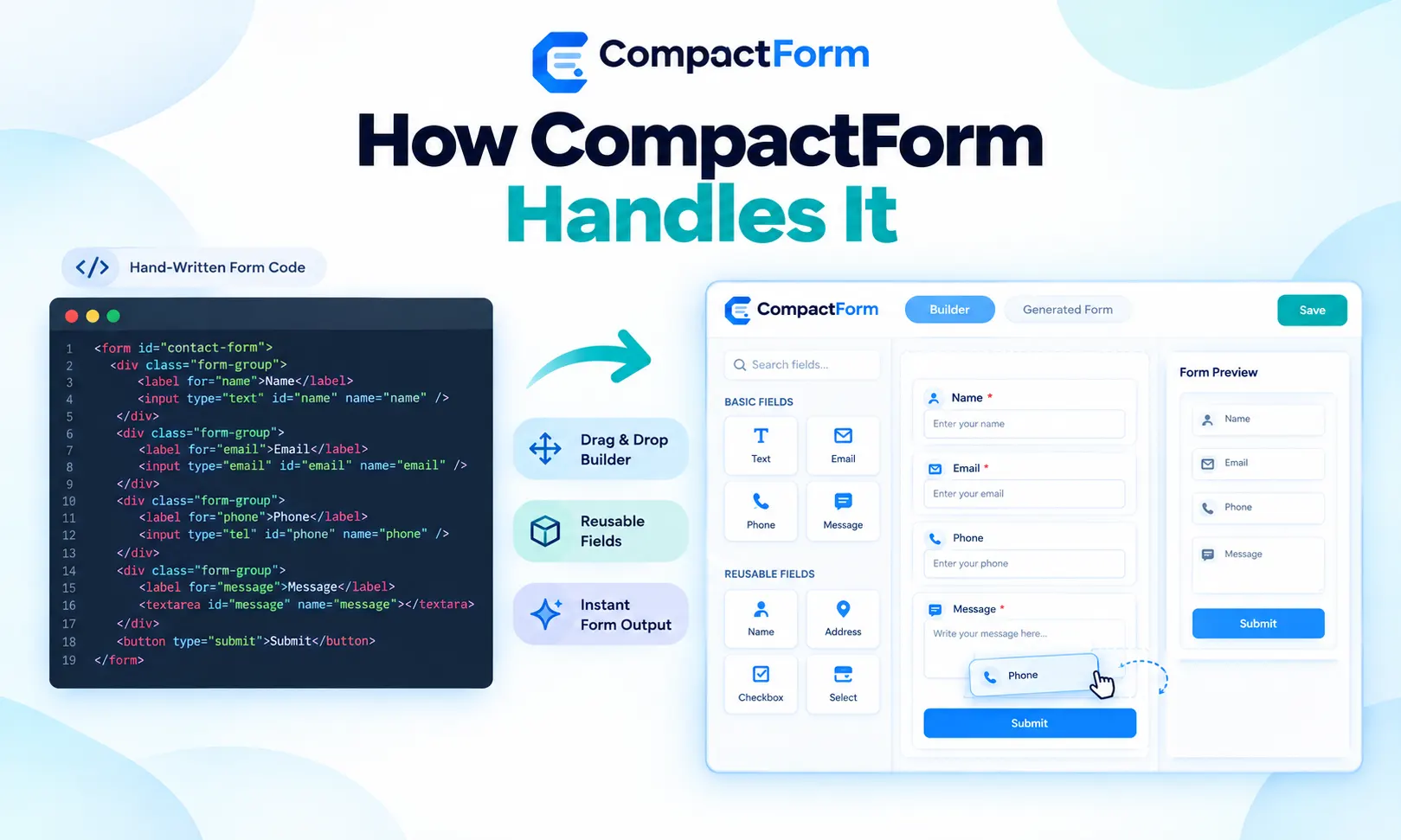

With CompactForm, you can drag fields into the builder, configure them from the side panel, and manage the form visually.
Layout
You do not have to manually wrap fields in HTML and create CSS for columns.
Drop fields into a Layout Container, arrange them side by side, and structure the form visually.
This makes it easier to create organized layouts without manually maintaining the markup.
Field Settings
Instead of remembering shortcode syntax for every field option, you can configure fields through the builder.
You can manage common settings such as required fields, placeholders, limits, and other field options directly from the interface.
Styling
CompactForm includes per-field styling controls.
You can adjust:
- Typography
- Colors
- Spacing
- Borders
- Responsive width
This lets you make design changes directly inside the builder instead of writing custom CSS for every small adjustment.
Conditional Logic
You can also create conditional fields visually.
For example, a service company could ask:
What type of service do you need?
If the visitor selects “Website Design,” additional website-related questions can appear.
If another service is selected, different questions can be displayed.
This keeps the form focused because visitors only see questions relevant to their selections.
Email Template
CompactForm provides a default email template for each form.
The system can detect the fields used in the form and automatically add the relevant field variables to the email template.
You can use the ready-made template for speed or customize it when your business needs a different email design.
Email Preview
You can also preview the email while editing it.
The live preview helps you check the structure and content before you start receiving real form submissions.
Advanced Fields
You do not need to search for separate solutions for every advanced field.
CompactForm includes options such as star ratings, signatures, date pickers, sliders, file uploads, and other advanced form elements.
The result is still a normal Contact Form 7 form. You simply get a visual way to build and manage it.
Why People Use CompactForm
CompactForm focuses on making Contact Form 7 easier to build and maintain.
No Code Needed
You can build forms on a visual canvas instead of manually handling every shortcode.
This is useful for beginners who do not want to learn the complete Contact Form 7 tag system and for experienced users who want to reduce repetitive work.
28 Free Field Types
CompactForm provides a broad collection of field types for creating different kinds of WordPress forms.
These include basic fields such as text, email, phone, URL, number, date, and textarea, along with options such as quiz, file upload, select, radio, checkbox, acceptance, star rating, country dropdown, date picker, time picker, signature pad, range slider, reCAPTCHA, spam protection, and layout containers.
Style Each Field
Each field can be styled from the builder.
You can control typography, colors, spacing, borders, and responsive width without needing to write custom CSS for every change.
Checked on the Server
CompactForm does not depend only on browser-side JavaScript.
Conditional rules are checked again on the server, and builder-managed fields are validated against the stored form configuration and submitted data.
This provides a server-authoritative validation process for important form rules.
Multiple Layers of Spam Protection
CompactForm includes several spam protection options:
- Google reCAPTCHA v3
- Honeypot fields
- Minimum fill-time checks
- Keyword blocking
These checks are applied on the server rather than relying only on browser-side scripts.
Light on Your Site
CompactForm is designed to load its assets only on pages where a form actually uses them.
This avoids loading CompactForm-related resources across pages that do not contain a relevant form.
Your Old Forms Are Safe
You do not have to change every existing form immediately.
The builder is opt-in for each form. Existing hand-written Contact Form 7 markup remains untouched until you decide to manage that particular form with CompactForm.
You can also import existing Contact Form 7 shortcode markup into the visual builder.
Create Better Contact Form 7 Layouts
A good form is not only about the fields you add. The way those fields are organized also matters.
CompactForm includes a Layout Container that lets you group related fields and structure longer forms.
For example, you can create sections for:
Personal Information
Name, email, and phone.
Project Information
Service, budget, and project details.
Additional Information
File upload, notes, and other questions.
This type of structure can make longer forms easier for visitors to follow.
Build Responsive Forms Without Extra CSS
Many forms need a two-column layout on desktop but a simpler single-column structure on mobile.
CompactForm provides responsive width controls for individual fields.
You can create a wider desktop layout and adjust field widths so the form remains easier to read on smaller screens.
This helps reduce the need for custom CSS when making Contact Form 7 forms responsive.
Conditional Logic for Smarter Forms
Conditional fields can make long forms more relevant to each visitor.
Instead of showing every question at once, you can display additional fields based on previous selections.
For example, a service inquiry form can display different questions depending on the selected service.
CompactForm checks these visibility rules on the server using the stored form configuration and submitted data.
Server-Authoritative Form Validation
Form validation is important when collecting information from website visitors.
CompactForm validates builder-managed fields on the server against the stored form configuration and submitted data.
Client-side validation can still provide quick feedback to visitors, but the final validation takes place on the server.
This is useful for required fields, field rules, conditional fields, and other validation requirements.
Import Existing Contact Form 7 Forms
If you already have several Contact Form 7 forms, rebuilding everything is unnecessary.
CompactForm can import existing Contact Form 7 shortcode markup into its visual builder.
You can then continue editing the existing form visually instead of starting from an empty canvas.
Export and Reuse Forms Between Websites
CompactForm also supports form portability.
You can export a builder-created form as a portable JSON file. The file contains the form configuration, styling, conditional logic, and related settings.
That JSON file can then be imported into another WordPress website with CompactForm installed.
This can be useful for freelancers, agencies, developers, client websites, and projects that need reusable form configurations.
Automatic Email Template Setup
Creating the form is only one part of the workflow.
You also need to decide what happens after a visitor submits the form.
CompactForm provides a professionally designed default email template. It can detect the fields used in the form and automatically add the relevant field variables to the email template.
You can use the default template for a quick setup or customize it for your business.
Preview Emails Before Receiving Submissions
CompactForm includes a live email template preview.
As you edit the email template, the preview updates so you can review the structure and content before using the form.
This can be useful for contact forms, quote requests, booking forms, and support forms where administrators receive many submissions.
Centralized Dashboard
CompactForm brings important configuration options into one dashboard.
You can manage:
- Addons
- Integrations
- API keys
- reCAPTCHA settings
- Webhook endpoints
- Field type availability
- Plugin settings
You can also enable or disable individual field types to keep the builder focused on the tools your website actually needs.
Connect Forms With External Services
Not every business wants form submissions to stop at an email inbox.
CompactForm supports webhook integration, allowing submissions to be sent to an external URL.
This can help connect your Contact Form 7 workflow with another application or service that accepts webhook requests.
Quick Builder Access From the Admin Bar
CompactForm also provides quick access to the builder from the WordPress admin bar when you are browsing the front end while logged into the administrator account.
This can reduce the number of steps needed when making quick changes to a form.
Keep Using the Contact Form 7 Ecosystem
CompactForm works with Contact Form 7 instead of replacing it.
Contact Form 7 remains the foundation, and builder-created forms remain genuine Contact Form 7 forms.
This means websites that already depend on Contact Form 7 can add a visual editing layer without moving their forms to a completely different platform.
Who Can Use CompactForm?
Beginners
If shortcode syntax feels difficult, the visual builder provides a simpler way to create and organize forms.
Freelancers
Freelancers can create reusable forms and export them as JSON files for different projects.
Agencies
Agencies can maintain reusable form configurations and move them between client websites.
Developers
Developers can use the visual builder for faster form creation while keeping Contact Form 7 underneath.
Business Owners
Businesses can use CompactForm for contact forms, quote requests, applications, service inquiries, feedback forms, and other custom WordPress forms.
CompactForm and Third-Party Services
CompactForm has two optional third-party service integrations: ipapi.co and Google reCAPTCHA.
The ipapi.co service is used by the Country Dropdown field when IP auto-complete is enabled. Google reCAPTCHA is used for automated submission detection when the administrator configures the required keys and adds the reCAPTCHA field.
Website owners should review the applicable terms and privacy policies before enabling these services.
CompactForm Requirements
Before installing CompactForm, your website should meet these requirements:
- WordPress 6.4 or newer
- PHP 7.4 or newer
- Contact Form 7 installed and activated
Contact Form 7 is required because CompactForm is designed as an extension of its existing form system.
Frequently Asked Questions
What is CompactForm?
CompactForm is a drag-and-drop visual builder for Contact Form 7. It lets you create, arrange, style, and manage forms through a visual interface instead of manually handling every shortcode.
Do I need coding knowledge?
No. The builder is designed so you can create forms, arrange fields, style them, and configure conditional logic visually.
Does CompactForm replace Contact Form 7?
No. CompactForm works on top of Contact Form 7. Contact Form 7 must remain installed and activated.
Can I use my existing forms?
Yes. Existing Contact Form 7 shortcode markup can be imported into the CompactForm builder.
Can I export forms?
Yes. CompactForm can export builder-created forms as JSON files containing the form configuration, styling, logic, and settings.
Can I reuse a form on another website?
Yes. You can import an exported JSON form into another WordPress website running CompactForm.
Does CompactForm support conditional logic?
Yes. You can show or hide fields based on other field values, and the rules are re-checked on the server.
Can I style individual fields?
Yes. You can customize typography, colors, spacing, borders, and responsive width for individual fields.
Does it include spam protection?
Yes. CompactForm includes reCAPTCHA v3, honeypot protection, minimum fill-time checks, and keyword blocking.
Do I need to create email templates manually?
No. CompactForm provides a default email template and can automatically detect your form fields and populate the template.
Final Thoughts
Contact Form 7 is a flexible foundation for WordPress forms, but managing complex forms through shortcode markup can become difficult as requirements grow.
CompactForm adds a visual workflow without taking away the Contact Form 7 foundation.
The biggest difference is the way you build and maintain your forms. Instead of manually managing form markup, CSS, field settings, conditional rules, and email templates, you can handle much of the workflow through a visual builder.
With drag-and-drop editing, 28 free field types, layout controls, per-field styling, conditional logic, server-side validation, spam protection, form import and export, automatic email templates, live email preview, webhooks, and a centralized dashboard, CompactForm gives WordPress users a more visual way to manage Contact Form 7 forms.
Most importantly, your forms remain part of the Contact Form 7 ecosystem.
You can start with a simple form, build more advanced layouts when needed, import existing forms, reuse configurations across websites, and manage your form settings from one place.
If you already use Contact Form 7 and want a more visual way to build and manage forms, CompactForm provides a practical editing workflow while keeping Contact Form 7 underneath.