


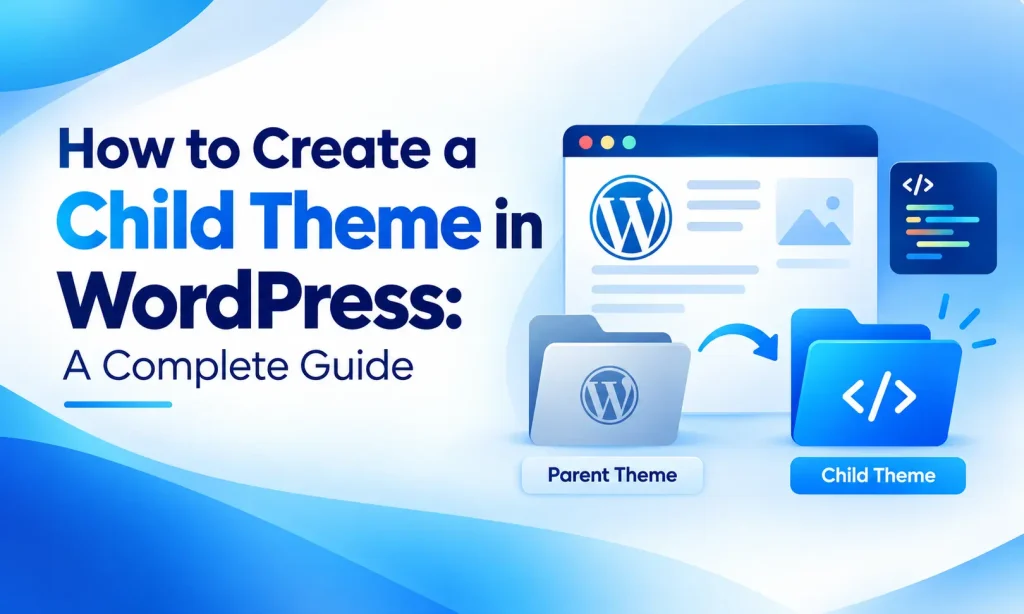
Customizing a WordPress theme can help you create a website that matches your brand, content, and business needs. However, directly editing the files of your main theme can cause problems when the theme receives an update.
A Child Theme in WordPress provides a safer way to customize your website. It allows you to modify templates, styles, functions, and other theme features while keeping the original theme separate.
In this guide, you will learn what a Child Theme in WordPress is, why you should use one, and how to create and activate it step by step.
What Is a Child Theme in WordPress?
A Child Theme in WordPress is a separate theme that inherits the design, features, and functionality of another theme called the parent theme.
The parent theme contains the main files and features. The child theme works as an additional layer where you can add your custom changes.
For example, if your website uses a theme called Business Pro, Business Pro is the parent theme. You could create a child theme called Business Pro Child and add your custom CSS, PHP functions, or template changes there.
This setup makes it easier to update the parent theme without automatically losing your customizations.
Why Use a Child Theme in WordPress?
There are several reasons to use a Child Theme in WordPress when you plan to make code-level customizations.
1. Keep Customizations Safe
When you edit the parent theme directly, your changes may be overwritten when the theme is updated.
A child theme keeps your custom code separate from the parent theme files.
2. Update the Parent Theme Easily
Theme updates often include security fixes, bug fixes, compatibility improvements, and new features.
With a properly configured child theme, you can update the parent theme while keeping your custom changes in the child theme.
3. Customize Theme Files
A child theme lets developers override specific template files from the parent theme.
For example, you can customize:
- Header templates
- Footer templates
- Single post layouts
- Page templates
- Archive templates
- CSS styles
- PHP functions
4. Reduce Development Risk
Keeping custom code separate makes your website easier to maintain. If something goes wrong, you can identify whether the issue comes from your customization or the parent theme.
How Does a WordPress Child Theme Work?
The relationship is simple:
Parent Theme → Provides the main design and functionality
Child Theme → Adds or overrides customizations
The child theme does not need to duplicate every file from the parent theme. It only needs the files you want to customize.
For example, if you want to change the appearance of your website, you may only need a style.css file and a functions.php file in your child theme.
WordPress uses the parent theme for everything else.
What You Need Before Creating a Child Theme
Before you create a Child Theme in WordPress, make sure you have:
- A working WordPress website
- An installed parent theme
- WordPress admin access
- FTP or hosting file manager access if creating it manually
- A backup of your website
It is also a good idea to test major customizations on a staging website before applying them to a live site.
How to Create a Child Theme in WordPress Manually
You can create a Child Theme in WordPress manually with a few basic files.
Step 1: Open Your WordPress Themes Folder
First, access your WordPress website files using your hosting file manager or FTP.
Navigate to:
wp-content/themes/
Inside this folder, you will find your installed WordPress themes.
For example:
wp-content/themes/my-theme/
If your parent theme is called my-theme, you can create a new folder next to it.
Step 2: Create a Child Theme Folder
Create a new folder inside the themes directory.
For example:
my-theme-child
The folder name can be different, but using the parent theme name followed by -child makes it easier to identify.
Your structure should look like this:
wp-content/themes/
├── my-theme/
└── my-theme-child/
Step 3: Create the style.css File
Inside the child theme folder, create a file named:
style.css
Add the following basic information:
/*
Theme Name: My Theme Child
Theme URI: https://example.com/
Description: Child theme for My Theme
Author: Your Name
Author URI: https://example.com/
Template: my-theme
Version: 1.0.0
*/

/* Custom CSS goes below */
The most important line is:
Template: my-theme
The value must match the exact folder name of the parent theme.
If your parent theme folder is named reobiz, for example, the template value should be:
Template: reobiz
Step 4: Create the functions.php File
Next, create another file inside your child theme folder:
functions.php
You can use it to add custom PHP functionality and load the child theme stylesheet.
For a classic WordPress theme, a basic example is:
<?php

function my_theme_child_enqueue_styles() {
    wp_enqueue_style(
        'parent-style',
        get_template_directory_uri() . '/style.css'
    );

    wp_enqueue_style(
        'child-style',
        get_stylesheet_directory_uri() . '/style.css',
        array('parent-style'),
        wp_get_theme()->get('Version')
    );
}

add_action('wp_enqueue_scripts', 'my_theme_child_enqueue_styles');
Avoid copying the entire parent theme functions.php file into your child theme. The two files work differently from template files, and duplicating the parent functions can cause errors.
Step 5: Activate the Child Theme
After creating the required files, log in to your WordPress dashboard.
Go to:
Appearance → Themes
You should see your new child theme listed there.
Click Activate.
Your website should continue using the parent theme’s main design while applying the child theme’s customizations.
Step 6: Add Custom CSS
Once your Child Theme in WordPress is active, you can add custom CSS to its style.css file.
For example:
.site-title {
    font-size: 32px;
    font-weight: 700;
}
You can use browser developer tools to identify the CSS classes or elements you want to modify.
Always test your changes after adding custom CSS.
How to Override a Parent Theme Template
One of the main benefits of a Child Theme in WordPress is the ability to override selected template files.
Suppose the parent theme contains:
single.php
You can copy that file into the child theme:
my-theme-child/single.php
Then make your changes to the child version.
WordPress will generally use the child theme’s single.php instead of the corresponding parent template.
This allows you to customize specific parts of the website without modifying the original theme.
Important: Do Not Copy Every File
You do not need to copy the complete parent theme into the child theme.
Only copy the template files you actually need to modify.
This keeps the child theme smaller and easier to maintain.
How to Add Custom Functions
You can also use the child theme’s functions.php file to add custom functionality.
For example, you could register a custom stylesheet, add a script, create a shortcode, or modify certain WordPress hooks.
A simple example:
function my_custom_message() {
    echo '<p>Welcome to our website!</p>';
}

add_action('wp_footer', 'my_custom_message');
Before adding PHP code to a live website, test it carefully. A PHP syntax error can cause a website to display an error.
Child Theme vs Parent Theme
Understanding the difference between the two makes WordPress customization easier.
| Feature | Parent Theme | Child Theme |
|---|---|---|
| Main design | Yes | Inherits |
| Main functionality | Yes | Inherits |
| Custom CSS | Possible | Recommended |
| Template overrides | Source | Custom version |
| Safe theme updates | Yes | Yes, for child customizations |
| Custom PHP | Yes | Recommended for custom additions |
The parent theme remains the foundation, while the child theme provides a place for your modifications.
Can You Create a Child Theme Without Coding?
Yes. You do not always need to manually create the files.
Some WordPress plugins can generate a child theme for you. This can be useful for beginners who are not comfortable working with theme files.
However, you should still understand how a Child Theme in WordPress works before making major changes.
For simple CSS changes, you may not even need a child theme. WordPress’s Additional CSS feature can be enough for many small visual adjustments.
When Should You Use a Child Theme?
A Child Theme in WordPress is especially useful when you plan to:
- Modify theme template files
- Add custom PHP functions
- Change theme-generated markup
- Make extensive CSS customizations
- Override specific templates
- Add custom theme functionality
If you only want to change a few colors, fonts, or spacing values, using the WordPress Customizer or Additional CSS may be simpler, depending on the theme.
When You May Not Need a Child Theme
Not every WordPress Customization requires one.
You may not need a child theme when:
- Your changes are limited to Additional CSS
- Your theme provides sufficient customization options
- You are using a block theme and can make the required changes through Site Editor features
- You are adding functionality that belongs in a plugin rather than a theme
A child theme is mainly useful when your customization needs to interact with the theme’s code or templates.
Common Child Theme Mistakes to Avoid
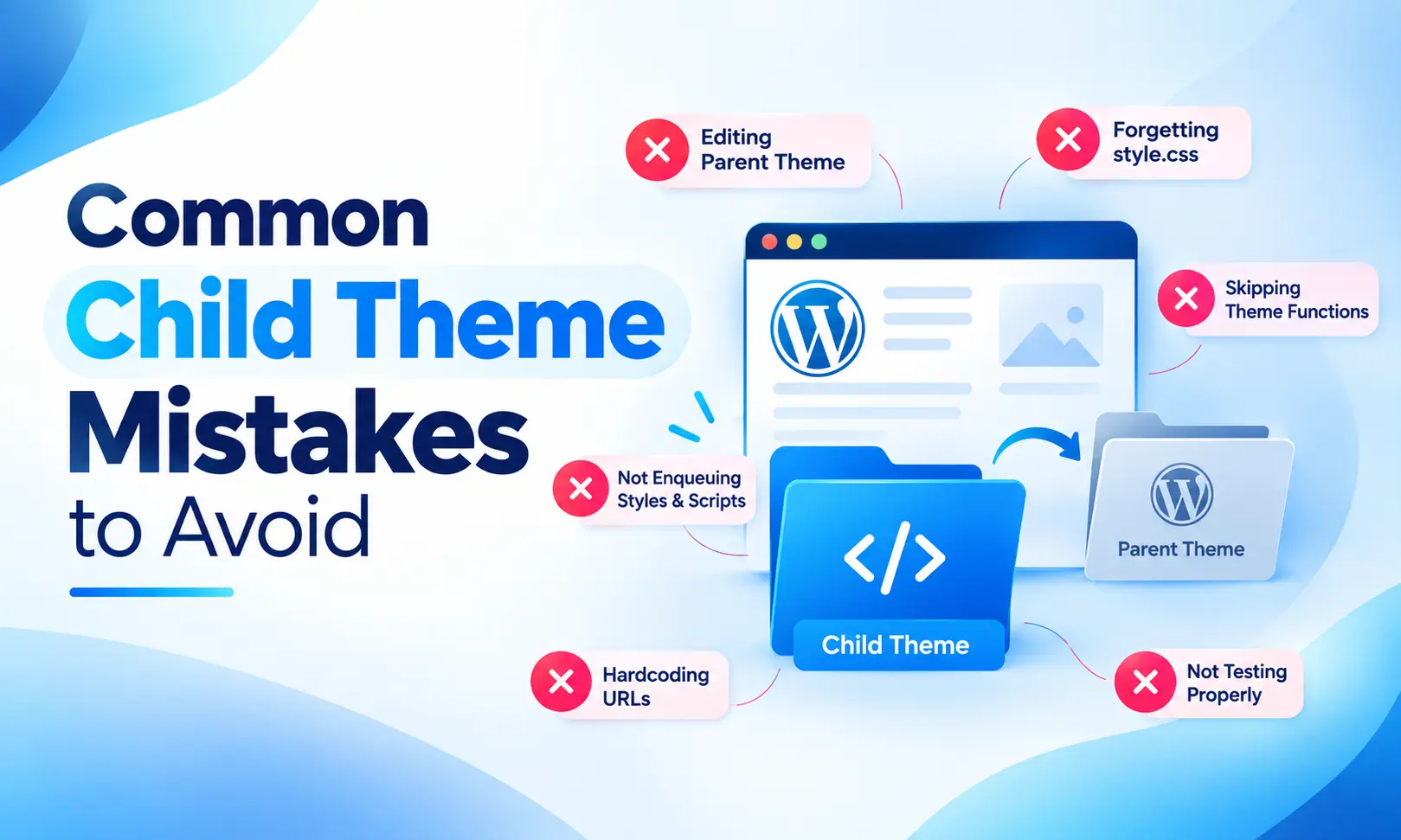

Creating a Child Theme in WordPress is relatively simple, but several mistakes can cause problems.
Incorrect Template Name
The Template value in style.css must match the parent theme’s directory name exactly.
Forgetting to Activate the Child Theme
Creating the files does not automatically activate the child theme.
You must activate it from Appearance → Themes.
Copying the Entire Parent Theme
Copying every parent theme file defeats much of the purpose of using a child theme.
Only override files that require customization.
Editing the Wrong functions.php File
The child theme’s functions.php does not replace the parent theme’s functions.php in the same way that template files can be overridden.
Be careful when adding or modifying PHP functions.
Not Creating a Backup
Always create a backup before making significant theme changes.
A backup gives you a way to restore the website if a customization causes an issue.
How to Test Your Child Theme
After activating your Child Theme in WordPress, check your website carefully.
Test:
- Homepage
- Blog posts
- Pages
- Navigation menus
- Footer
- Header
- Contact forms
- Mobile layout
- Tablet layout
- WooCommerce pages, if applicable
- Custom templates
Clear your website cache after making CSS or template changes if your caching system prevents the changes from appearing immediately.
How to Update the Parent Theme Safely
One of the main reasons developers use a Child Theme in WordPress is to separate customizations from the parent theme.
Before updating the parent theme:
- Create a full website backup.
- Check the theme’s update notes.
- Test the update on a staging website when possible.
- Update the parent theme.
- Check your child theme customizations.
- Test important website functions.
A child theme helps protect your custom files, but it does not guarantee that every customization will remain compatible with every future parent theme update.
If the parent theme changes its template structure or functions, you may need to update your child theme code.
Frequently Asked Questions
What is a Child Theme in WordPress?
A Child Theme in WordPress is a separate theme that inherits features and design from a parent theme. It provides a safer location for custom CSS, template changes, and additional theme functionality.
Is a child theme necessary for WordPress?
No. A child theme is not required for every website. It becomes useful when you need to make code-level changes to a theme and want to keep those changes separate from the parent theme.
Will a child theme slow down my website?
A properly created child theme generally does not create a significant performance problem. Its impact depends more on the code, scripts, styles, and customizations you add.
Can I update the parent theme after creating a child theme?
Yes. Updating the parent theme is one of the main reasons to use a child theme. However, you should test your website after major updates because changes in the parent theme can affect customizations.
Can I delete the parent theme?
No. The child theme depends on its parent theme. You should keep the required parent theme installed and available.
Can I use a child theme with Elementor?
Yes. A child theme can be used with Elementor and other WordPress page-building tools. However, many visual changes can be handled directly through the builder without editing theme files.
Can I customize PHP with a child theme?
Yes. The child theme’s functions.php file can contain additional PHP functions and hooks. Always test custom PHP carefully before using it on a live website.
What files are required for a child theme?
For a basic classic WordPress child theme, the key file is style.css, which contains the child theme information. A functions.php file is commonly used to load styles and add custom functionality.
Final Thoughts
A Child Theme in WordPress gives you a practical way to customize a WordPress theme while keeping your modifications separate from the parent theme.
The basic process is straightforward: create a child theme folder, add the required style.css information, create functions.php when needed, activate the child theme, and then add your customizations.
For small visual changes, WordPress’s built-in customization options may be enough. But if you plan to modify templates, add custom PHP, or make deeper theme changes, a child theme can make your website easier to maintain.
Most importantly, keep backups, test your changes, and avoid modifying the parent theme directly when a child theme is appropriate.