


WordPress theme not installing? It should be a breeze to set up a new theme, but sometimes you hit a wall no matter what you try. Whether you’re launching a blog, revamping your business site, or experimenting with new designs, this issue can be frustrating and halt your progress.
Don’t worry. You’re not alone—and better yet, you’re about to fix it. This guide breaks down the most common reasons behind the wordpress theme not installing error and gives you simple, effective solutions to get your site back on track.
Here Are 5 Common Reasons and Fixes:
1. You’re Uploading the Wrong File


This is the most common mistake. Many premium themes come in a zipped package that includes documentation, demo content, and licensing info. If you upload the entire package, WordPress won’t recognize it as a theme.
How to fix it:
- Unzip the downloaded file on your computer.
- Look for the actual theme file—usually named something like
theme-name.zip. - Upload that file only via Appearance > Themes > Add New.
Still seeing the wordpress theme not installing message? Keep reading.
2. The Theme Is Missing Essential Files


Every WordPress theme must include a style.css file. This file tells WordPress what the theme is and how to use it. If it’s missing, the theme won’t install.
How to fix it:
- Open the theme folder and check for
style.css. - If it’s not there, the theme is either broken or incomplete.
- Re-download the theme from the official source or contact the developer.
Avoid downloading themes from shady websites. They often cause the wordpress theme not installing issue due to missing or corrupted files.
3. Your Server Has Upload Limits


Large theme files can exceed your server’s upload limits, especially on shared hosting plans. When this happens, WordPress silently fails to install the theme.
How to fix it:
- Check your server’s
upload_max_filesizeandpost_max_sizesettings. - Increase these limits via your hosting control panel or ask your host for help.
- Or, install the theme manually:
- Use an FTP client like FileZilla.
- Upload the unzipped theme folder to
/wp-content/themes/. - Go to your dashboard and activate the theme.
This method bypasses upload restrictions and resolves the wordpress theme not installing error caused by server limits.
4. Plugin or Theme Conflicts
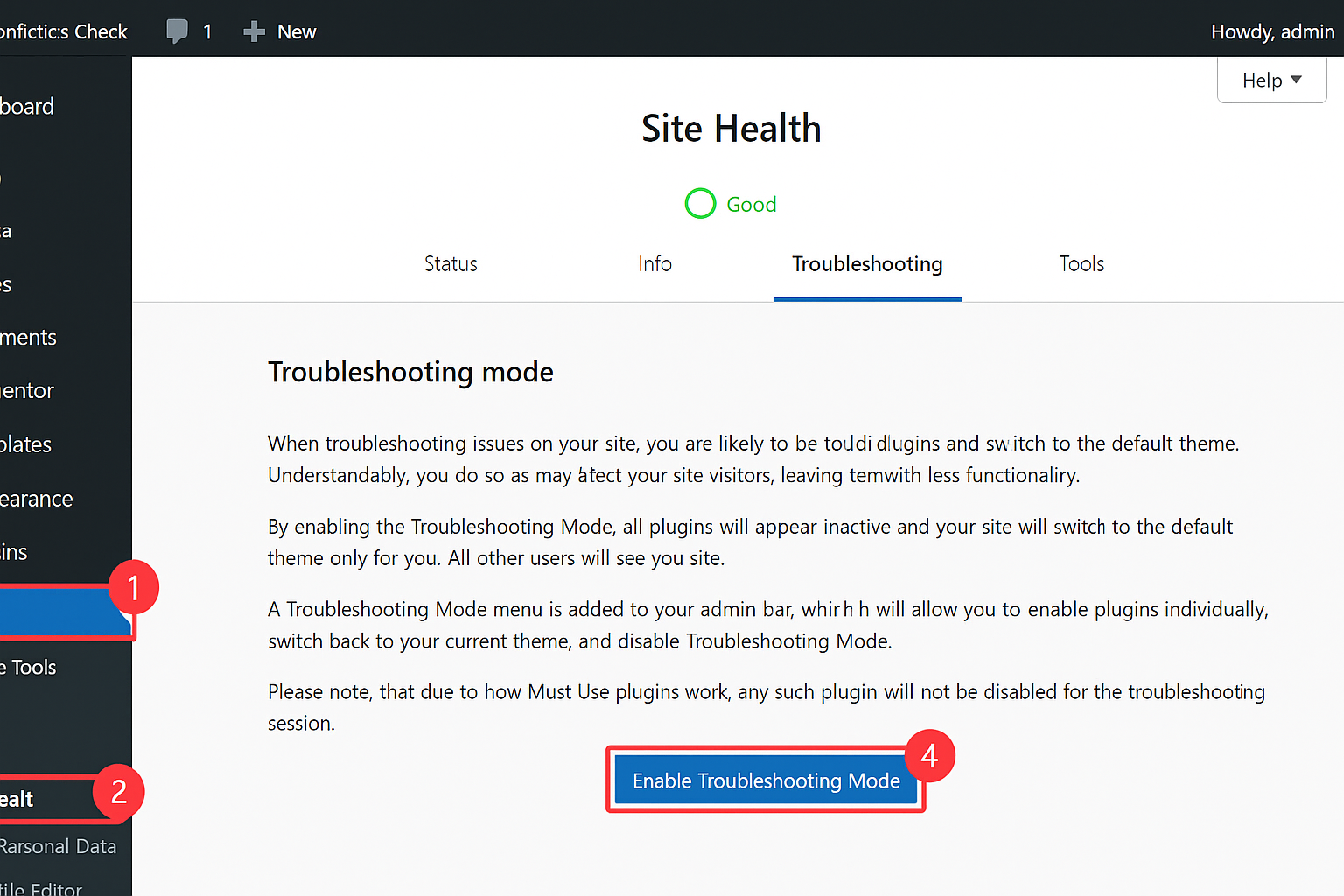

Sometimes, another theme or plugin is the culprit. Conflicts can prevent a new theme from installing or activating properly.
How to fix it:
- Temporarily deactivate all plugins.
- Try installing the theme again.
- If it works, reactivate plugins one by one to find the conflict.
- Also, switch to a default theme like Twenty Twenty-Four before installing the new one.
Compatibility issues are a sneaky cause of the wordpress theme not installing problem, especially if your WordPress version is outdated.
5. File Permissions Are Blocking the Upload


WordPress needs permission to write files to your server. If your file permissions are too strict, the theme won’t install.
How to fix it:
- Use an FTP client or file manager to check the permissions of
/wp-content/themes/. - Set folder permissions to 755 and file permissions to 644.
- If you’re unsure, ask your hosting provider to help.
Correct permissions ensure WordPress can install themes without hitting a wall—and eliminate the wordpress theme not installing error for good.
Bonus: Other Quick Checks
Still stuck? Here are a few more things to try:
- Update WordPress: An outdated version can cause compatibility issues.
- Clear your browser cache: Sometimes the error is visual, not functional.
- Check for duplicate themes: If a theme with the same name already exists, installation may fail.
- Use a different browser: Occasionally, browser extensions interfere with uploads.
These small tweaks can make a big difference when dealing with the WordPress Theme not installing issue.
How to Avoid Theme Installation Problems in the Future
Prevention is better than cure. Here’s how to keep your WordPress theme installations smooth:
- Download from trusted sources: Stick to the WordPress repository or reputable developers.
- Read the documentation: Most themes include detailed install instructions.
- Back up your site: Always create a backup before installing a new theme.
- Test on a staging site: Try new themes in a safe environment before going live.
By following these tips, you’ll reduce the chances of running into the wordpress theme not installing error again.
The wordpress theme not installing error can feel like a roadblock, but it’s usually easy to fix once you know where to look. Whether it’s a file format issue, server limitation, or plugin conflict, the solutions above will help you troubleshoot and resolve the problem quickly.
Remember: WordPress is powerful, but it’s also picky. A little attention to detail goes a long way. So the next time you see that dreaded wordpress theme not installing message, you’ll know exactly what to do.