







Setting up the Menu
Navigate to Appearance > Menus and create your main menu. Inside the “Manage Locations” tab you can assign this menu as the Primary Menu.
Menu items linking to section pages
To create a menu item linking to a section of the One Page template select Links from the left side panel and set the “URL” to #page-slug and “Link text” as the name of the menu item (eg. #about-us as URL and “About us” as Link text).
The left side panel box should look like this:

Menu items linking to stand alone pages
If you want to include a stand alone page menu item use the “Pages” tab, select desired page and click “add to menu”.
Setting up the Mega Menu
To set up a mega menu make sure you follow the steps below:
1. Make sure you checked Enable RS Mega Menu checkbox & clicked on save.
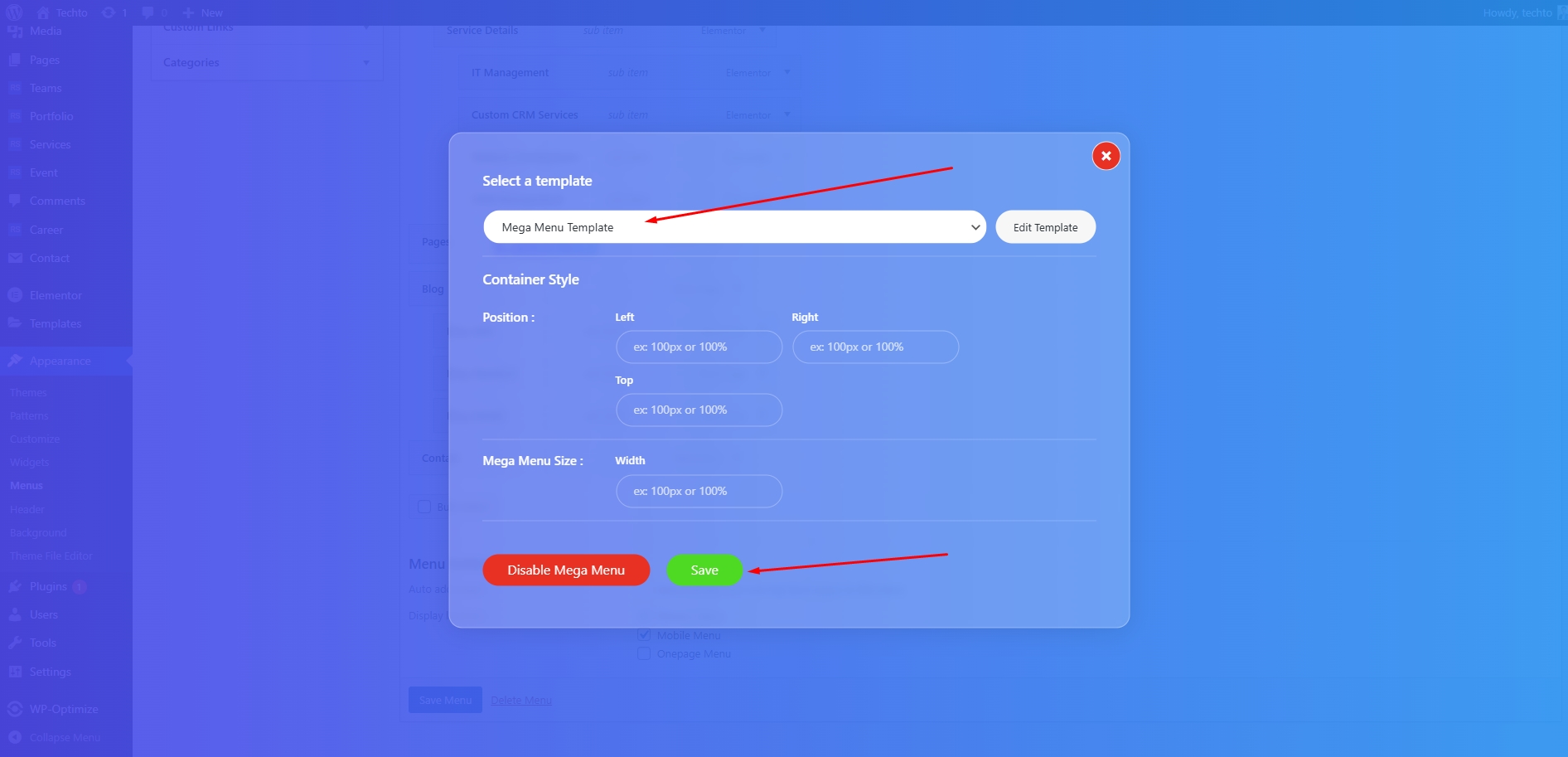
2. After clicking the Save button, wait for the page to reload, then hover over the menu item where you want to enable the Mega Menu — you’ll see the RS Mega Menu button, click it.

3. Choose the Elementor template you’d like to display as the mega menu dropdown, then click Save..
Setting up the Mobile Menu
Create a new menu and make sure you checked Mobile Menu Checkbox on display location part, and on all your pages you will get this menu as mobile menu.

Setting up the Onepage Menu
1. Create a new menu and make sure you checked Onepage Menu Checkbox on display location part.

2. For on click scroll to section add section name with hash on url.

3. On elementor page builder give that name in CSS ID, now when you click on this menu item it should take you on this section.

5. Go to header builder and open your desire header then get RS Navigation Menu and select your onepage menu, on this header you will get this onepage menu.

4. For showing onepage menu on mobile go to the page where you want to show the Onepage Menu and go to edit page then take a look at right side and check for the onepage checkbox, now on this specific page you will get the onepage menu on mobile, previous enabled Mobile Menu also not appear to this page.