











Coming soon mode on WordPress
Coming soon pages are essential to set up for your new website or construction website. Because this will let your visitors know that the website is temporarily down and will be up soon. Also, you can keep any notice for your traffic. And you can start this maintenance mode very easily, using only one plugin.
This article will teach you how to create a Coming Soon or Maintenance Mode Page on your WordPress website using a plugin.
Why create a coming soon or maintenance mode page on your WordPress website?
Coming soon mode is used when your WordPress site has not yet been launched. It’s typically employed after registering a domain name but before completing the website. Maintenance mode is used when your website is temporarily offline for maintenance or adjustments. It’s activated when you need to make changes to an existing site without affecting the user experience.
A coming soon page allows you to generate excitement and anticipation about your upcoming site before its official launch. Google and other search engines start indexing your site even while it’s in coming soon mode. This can help boost your SEO rankings. Unlike coming soon mode, maintenance mode tells search engines not to index the website in its current state. This ensures that any temporary issues or incomplete changes don’t negatively impact SEO.
Also, Including an email newsletter signup form on your coming soon page allows visitors to receive notifications when your site goes live. It’s also an excellent way to start building an email list and the maintenance mode page informs visitors that the site is undergoing maintenance or updates.
How do you use the coming soon or maintenance mode page on WordPress using a plugin?
Install the UCSM-Ultimate Coming Soon & Maintenance Plugin
Install the UCSM-Ultimate Coming Soon & Maintenance Plugin using WordPress Plugin Search
- Login to your WordPress admin dashboard and go to the Plugins menu, click on Add New Plugin
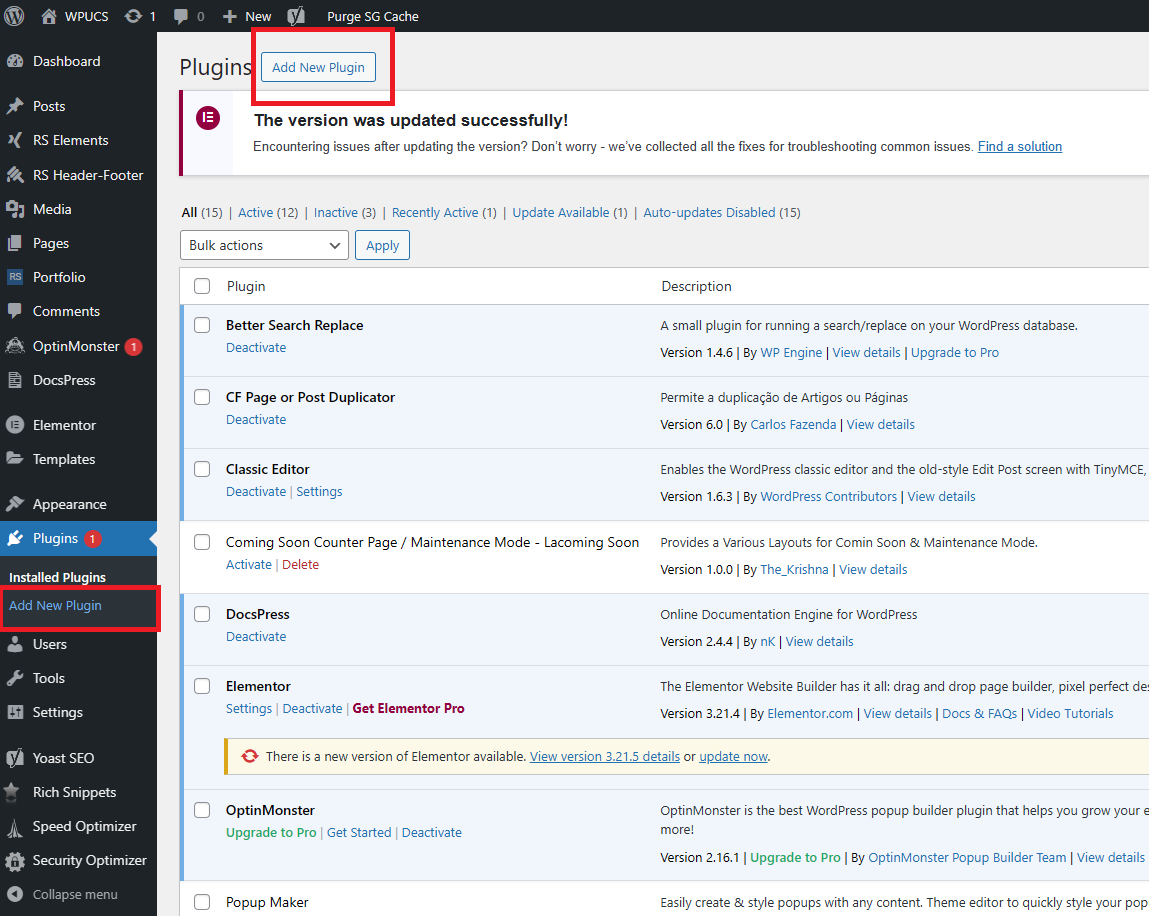
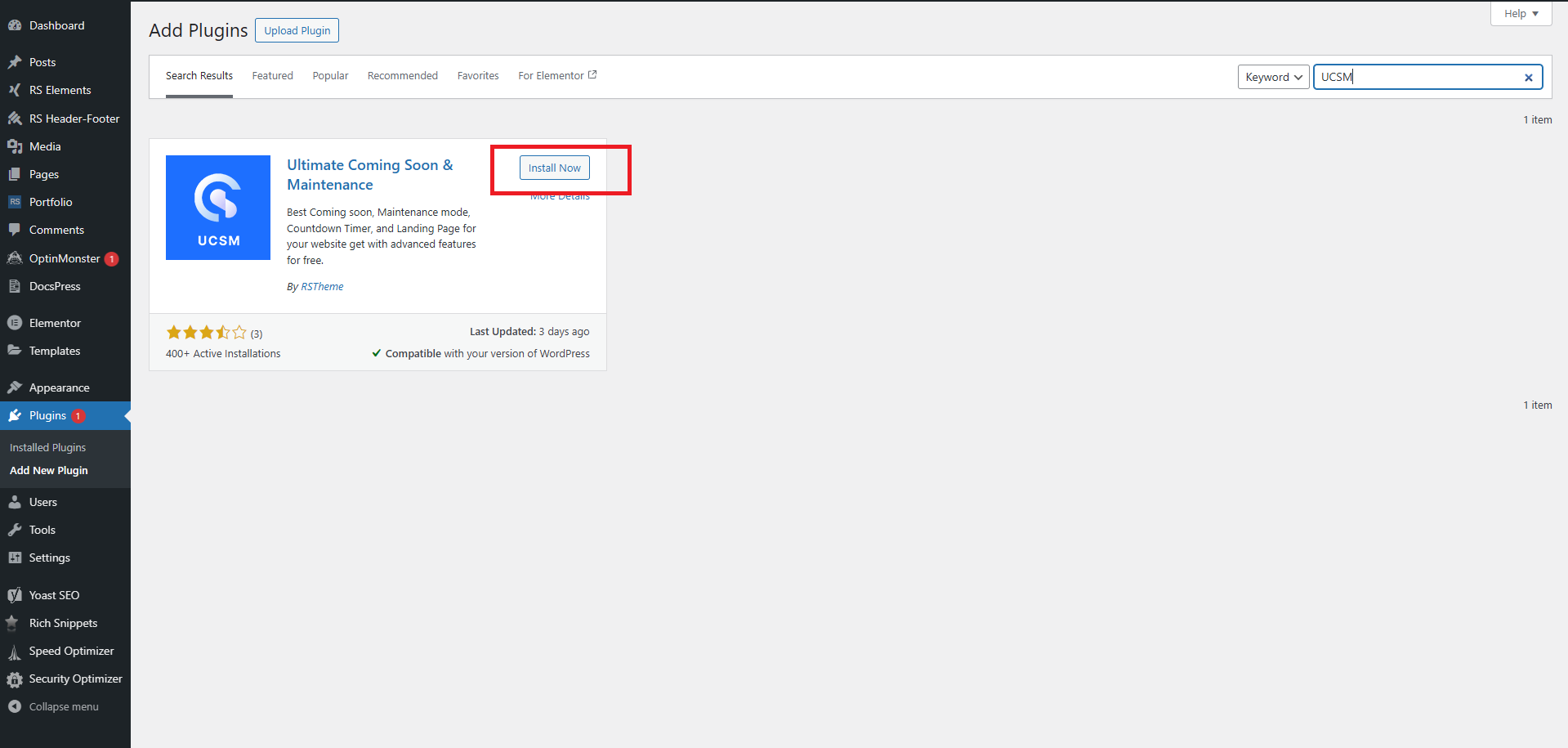
- You will see a screen like the one in the screenshot below. Find the plugin by typing the plugin name – UCSM

- Now, Install and activate the UCSM-Ultimate Coming Soon & Maintenance Plugin.
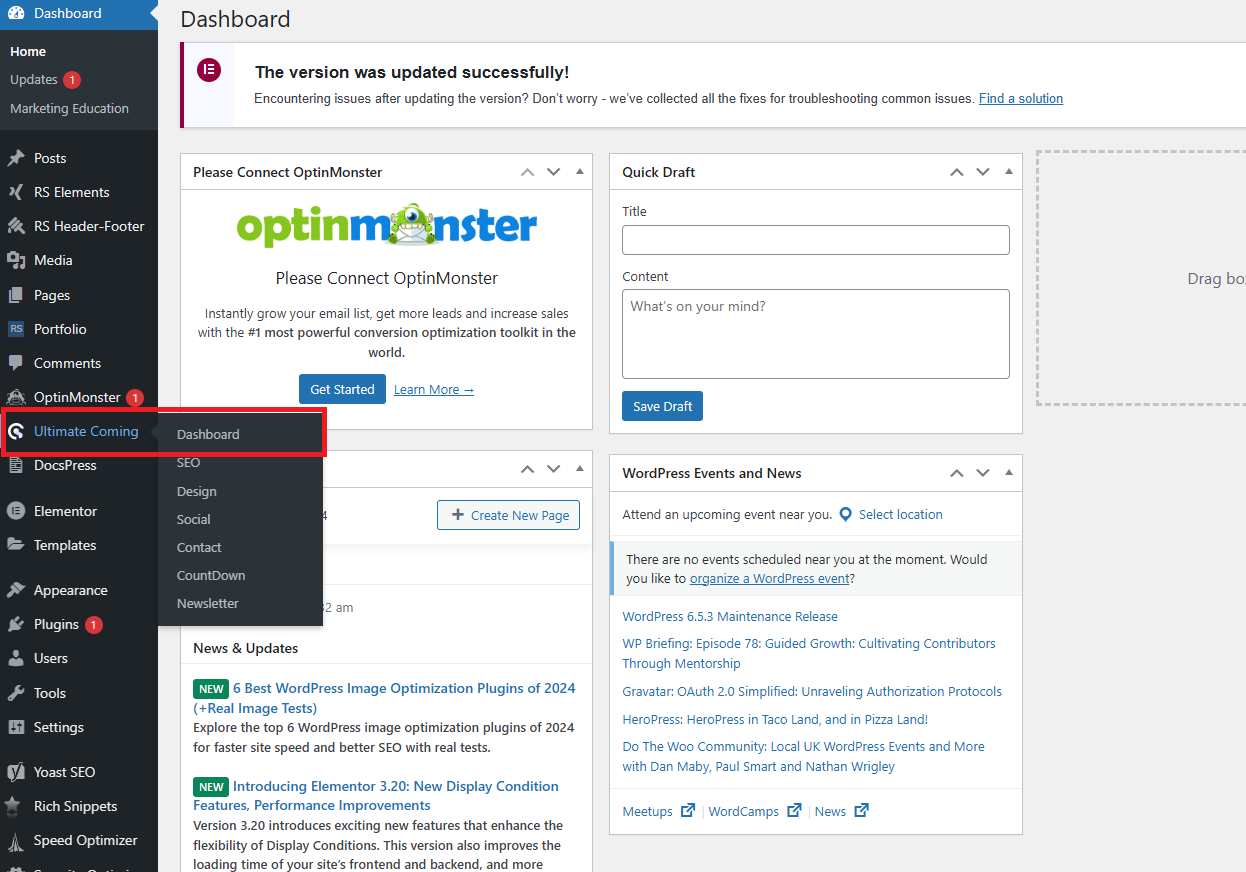
- After active the plugin you will get the Ultimate Coming menu
- From the dashboard Enable Coming Soon & Maintenance Mode
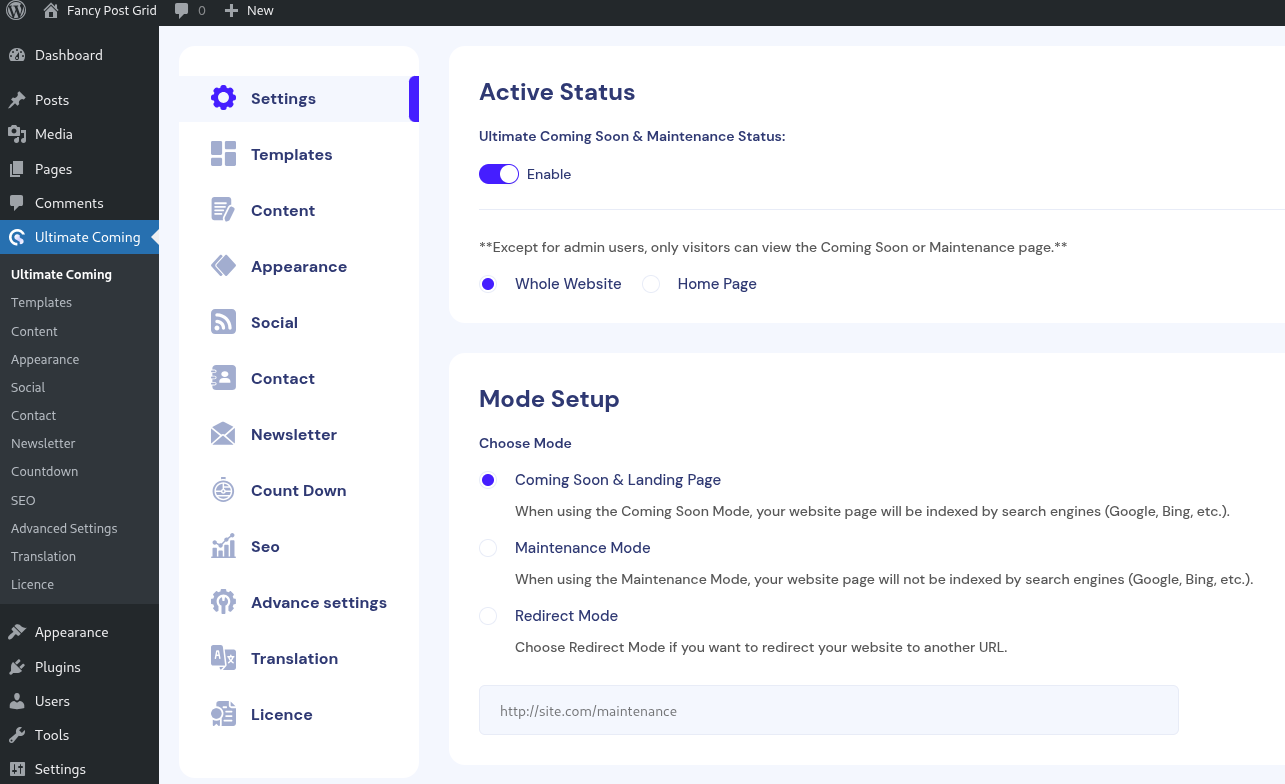
Customize Coming Soon or Maintenance Mode Page Template
From the upper menu of the plugin, go to the Templates option and Active any templates
then, go to Dashboard and change the content. If you want to change the design or image of the template go to the Design option.
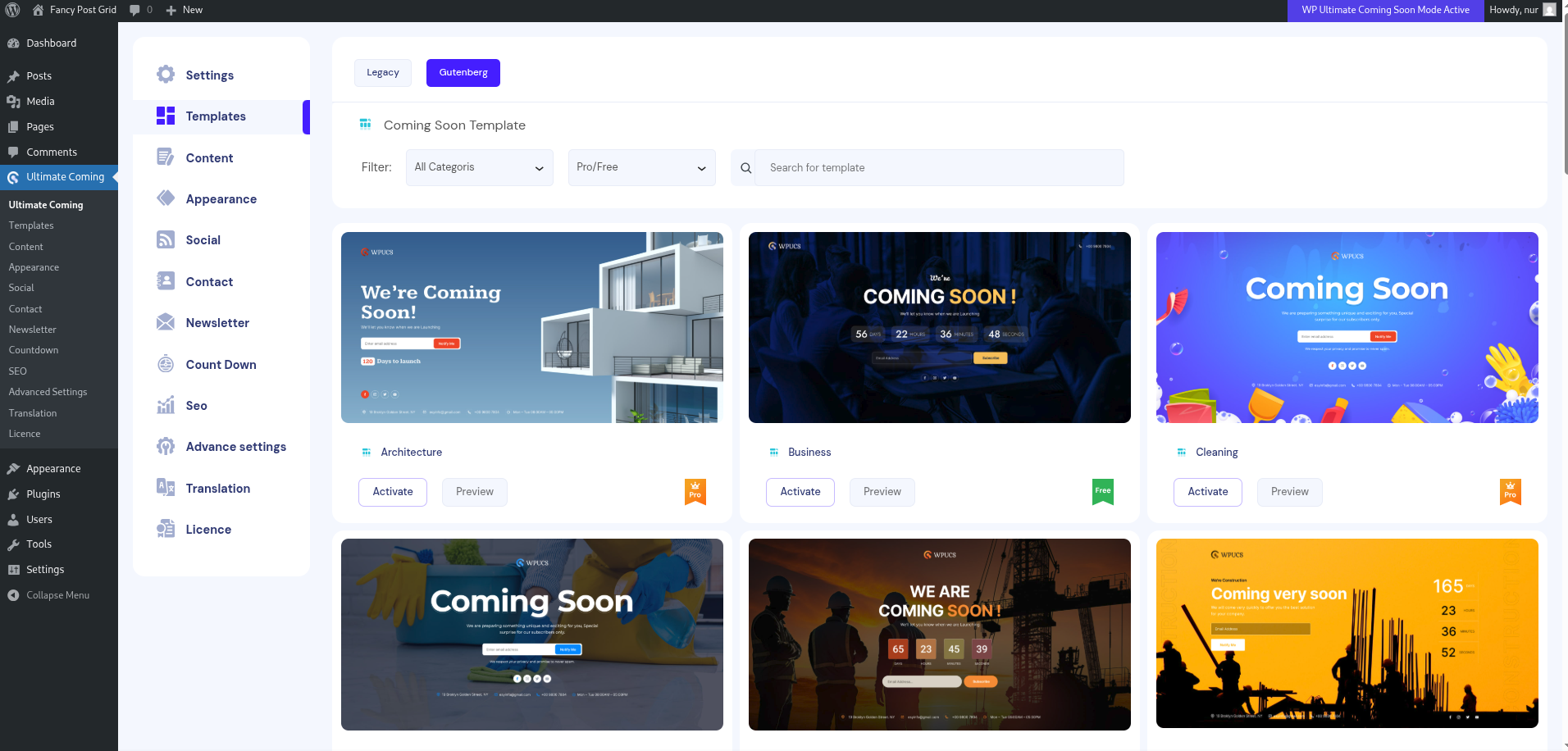
- Now, change logo, content, URL, social functionality, contact, countdown, and SEO settings.
- Then, click the Save Change button