











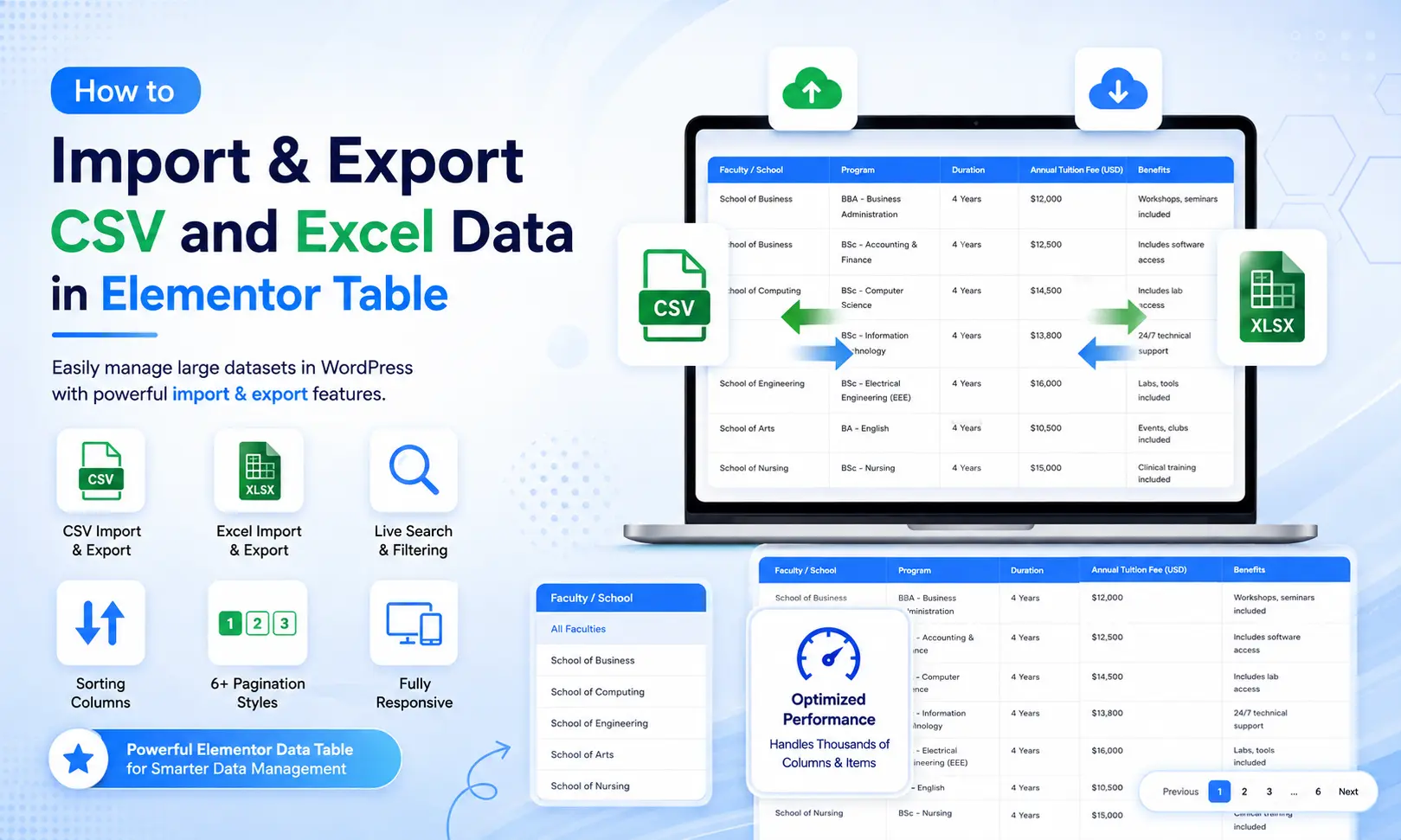
Managing large amounts of data on a WordPress website can become time-consuming when every row has to be added manually. If your data is already available in a CSV or Excel spreadsheet, you can make the process much easier with an Elementor Data Table.
With the Ultimate Data Tables Addon for Elementor, you can create responsive and feature-rich tables directly from the Elementor editor. The addon supports CSV and Excel import and export, live search, pagination, sorting, responsive controls, custom styling, and more.
In this guide, you’ll learn how to import and export CSV and Excel data using an Elementor Data Table, manage large datasets, and customize your table without writing code.
What Is an Elementor Data Table?
An Elementor Data Table is a structured table that displays information in rows and columns on a WordPress website.
You can use an Elementor Data Table for many types of content, including:
- Product catalogs
- Pricing information
- Employee directories
- Student records
- Service lists
- Business directories
- Event schedules
- Comparison data
- Inventory information
- Statistics
The Ultimate Data Tables Addon is built specifically for Elementor, allowing you to manage your table directly from Elementor’s native panel.
You don’t need shortcodes, PHP, template files, or custom coding to create and style an Elementor Data Table.
Why Import CSV and Excel Data into an Elementor Data Table?
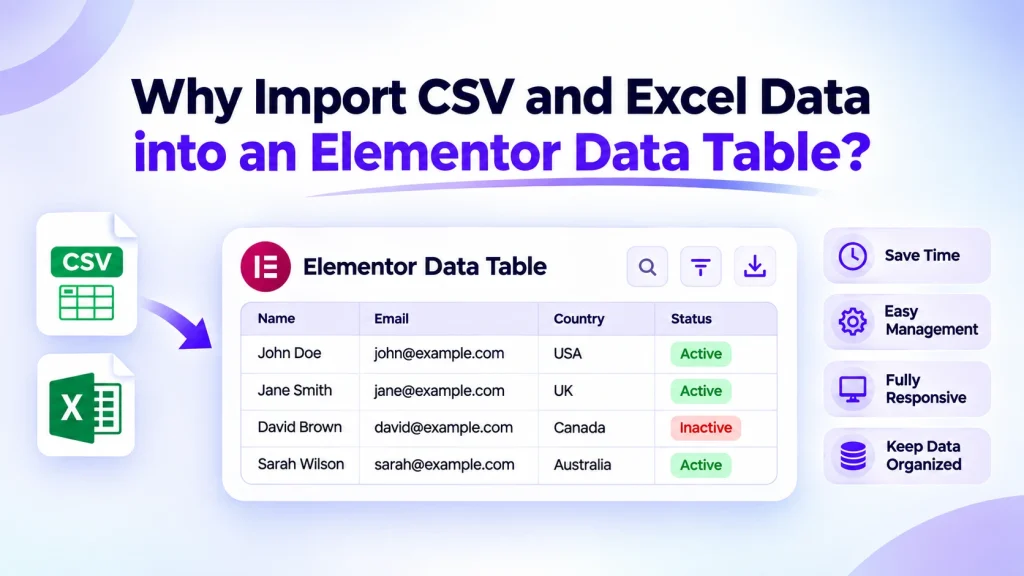
Adding a few rows manually is simple. However, managing hundreds or thousands of records through Elementor repeater fields can take considerable time.
CSV and Excel import makes this process much easier.
You can prepare your information in a spreadsheet, import the file into your Elementor Data Table, and continue editing the content directly inside Elementor.
This workflow is especially useful for websites that regularly manage large datasets.
Main benefits include:
- Faster data entry
- Easier bulk data management
- Less manual work
- Simple spreadsheet-based workflow
- Easy data updates
- Better management of large tables
- Convenient CSV and Excel export
For businesses working with large datasets, an Elementor Data Table can provide a much more practical way to organize and display information.
How to Import CSV Data into an Elementor Data Table
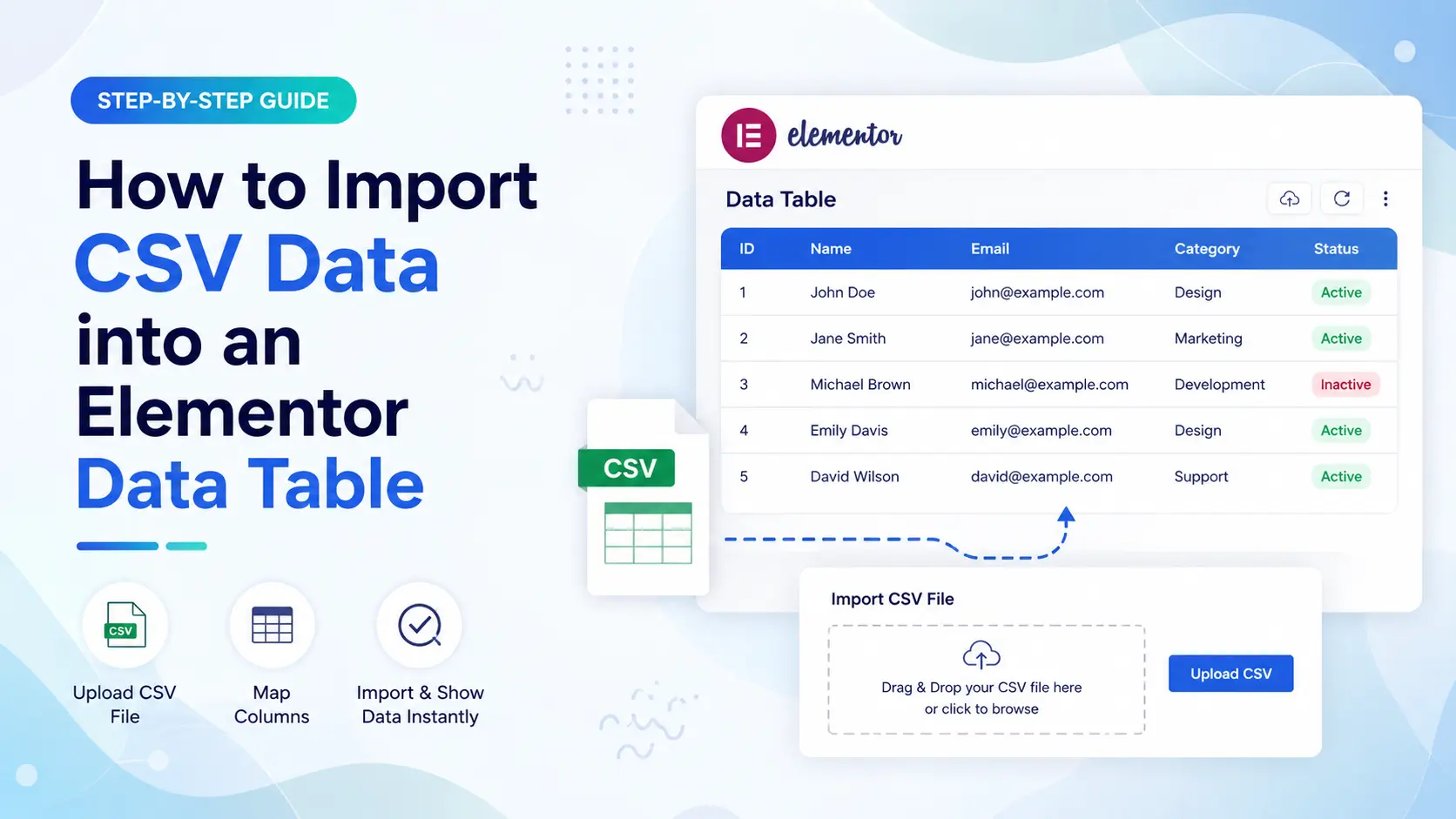
The CSV Import & Export feature is available in the Pro version of the Ultimate Data Tables addon.
You can import a .csv file instead of manually entering every row into your Elementor Data Table.
Step 1: Prepare Your CSV File
First, prepare your data using Microsoft Excel, Google Sheets, or another spreadsheet application.
For example:
| Product | Category | Price | Stock |
|---|---|---|---|
| Product A | Software | $49 | 25 |
| Product B | Hosting | $79 | 18 |
| Product C | Security | $99 | 30 |
Keep your column headings clear and make sure the information is properly organized.
Then save the file as a .csv file.
A clean CSV file makes it easier to import information into your Elementor Data Table without unnecessary corrections.
Step 2: Open Elementor
Open the WordPress page where you want to display the table and launch the Elementor Editor.
Add the Ultimate Data Tables widget to your page.
The Elementor Data Table widget can then be managed directly from Elementor’s native interface.
Step 3: Import Your CSV File
With the Pro version active, use the CSV import option to upload your .csv file.
The table data can be imported without manually creating every row through Elementor’s repeater fields.
This is particularly helpful when your Elementor Data Table contains a large number of records.
Step 4: Review the Imported Data
After importing the CSV file, review your Elementor Data Table carefully.
Check:
- Column headings
- Row information
- Numbers
- Text
- Dates
- Empty cells
If necessary, you can continue editing the imported content through Elementor’s repeater fields.
Step 5: Publish Your Table
Once everything looks correct, update or publish your Elementor page.
Your CSV information is now available in your Elementor Data Table and can be displayed to website visitors.
How to Import Excel Data into an Elementor Data Table

If your data is already stored in Microsoft Excel, you can import it directly using the Pro version’s Excel Import & Export feature.
The supported Excel format is .xlsx.
Step 1: Prepare Your Excel File
Create your spreadsheet with clear columns and organized rows.
For example:
| Name | Department | Position | Location |
|---|---|---|---|
| John Smith | Marketing | Manager | London |
| David Lee | Sales | Executive | Toronto |
| Sarah Jones | Support | Specialist | Sydney |
Save the spreadsheet as an .xlsx file.
A well-organized Excel file will make the import process smoother when creating your Elementor Data Table.
Step 2: Add the Data Table Widget
Open Elementor and add the Ultimate Data Tables widget to your page.
Your Elementor Data Table can then be configured from the same visual editing environment.
Step 3: Upload the Excel File
Use the Excel import option available with the Pro version.
Upload your .xlsx file and import the table data.
The imported information will populate your Elementor Data Table without requiring manual row-by-row entry.
Step 4: Edit the Imported Data
After importing the Excel file, you can continue managing the content directly through Elementor’s repeater fields.
You are not locked into the original spreadsheet.
You can make individual changes to your Elementor Data Table whenever necessary.
How to Export an Elementor Data Table to CSV
Importing data is useful, but exporting your table data can be equally important.
The CSV export feature allows you to take your Elementor Data Table data out of WordPress and work with it in spreadsheet software.
A typical workflow includes:
- Open your table.
- Access the export option.
- Select CSV export.
- Generate the CSV file.
- Save the exported file.
You can then open the CSV file in Excel, Google Sheets, or another compatible application.
CSV export is useful for editing, analysis, sharing, and keeping a backup of your Elementor Data Table information.
How to Export an Elementor Data Table to Excel
You can also export table data in Excel format using the supported Pro functionality.
Excel export is useful when you want to continue working with your Elementor Data Table data in Microsoft Excel.
For example, you may want to:
- Review records offline
- Update information
- Create reports
- Share data with your team
- Keep a backup
- Analyze large datasets
After making changes, the updated spreadsheet can become part of your ongoing data management workflow.
Can You Manage Imported Data Inside Elementor?
Yes. Importing a CSV or Excel file doesn’t mean you have to keep editing your information outside WordPress.
You can continue managing and editing your Elementor Data Table content directly through Elementor’s repeater fields.
This gives you two convenient workflows.
Spreadsheet workflow: Prepare and manage large datasets in CSV or Excel.
Elementor workflow: Make individual changes directly inside the Elementor panel.
This combination makes an Elementor Data Table useful for both large-scale data management and small manual updates.
Do You Need Coding Knowledge?
No. One of the biggest advantages of the Ultimate Data Tables addon is its Elementor-native workflow.
You don’t need to write a single line of code to build an Elementor Data Table.
You can:
- Add header columns using repeater fields
- Add body rows using repeater fields
- Enable or disable features with controls
- Customize table elements visually
- Manage table content directly from Elementor
There are no shortcodes, PHP files, or template files required for the normal table-building workflow.
The Elementor Data Table works like a regular Elementor widget, making it accessible even if you don’t have development experience.
Free vs Pro: What Do You Need for CSV and Excel Import?
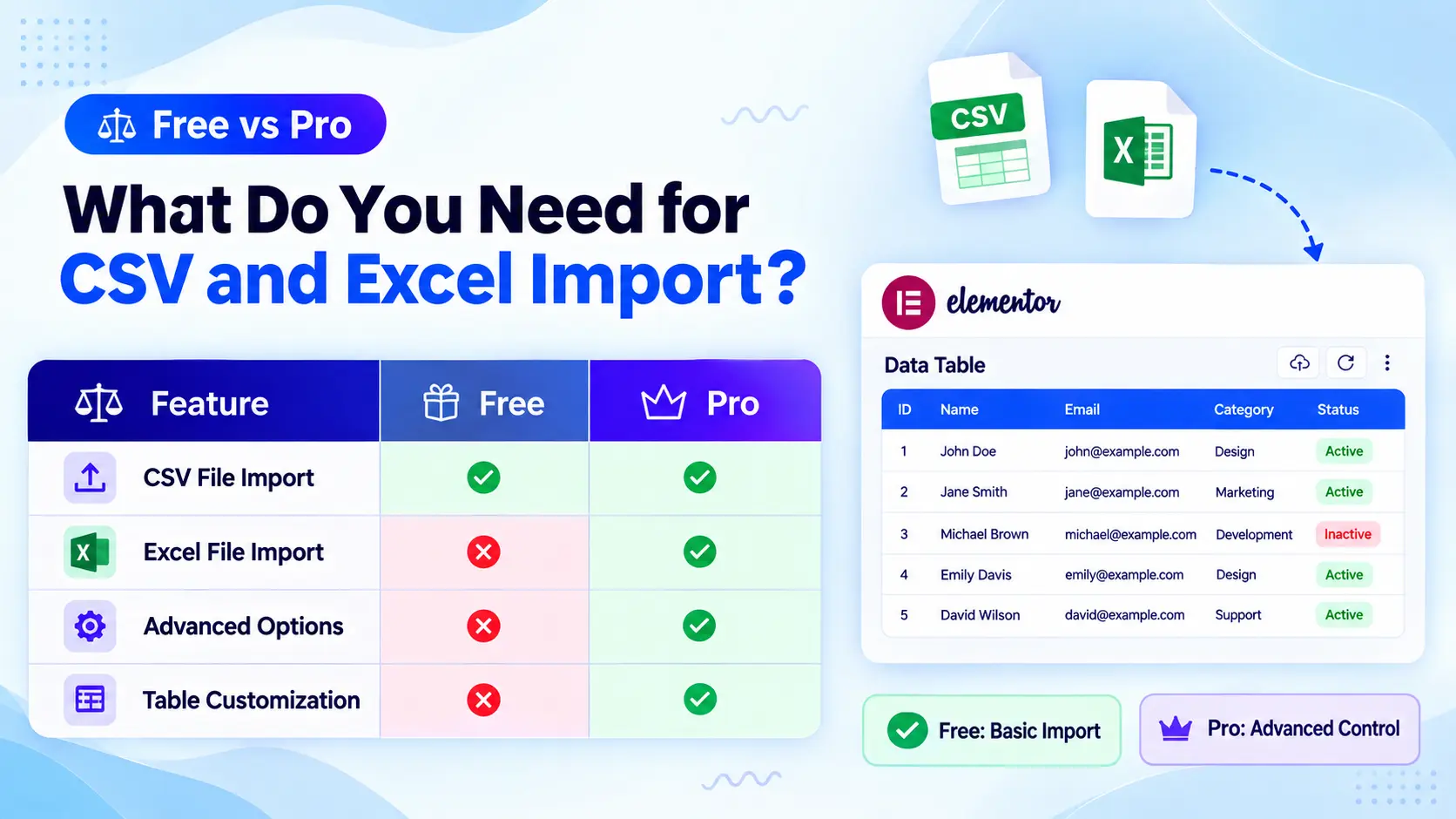
The free and Pro versions have different roles.
The free version is standalone and requires only the free Elementor plugin.
The Pro addon requires the free plugin to be installed and active. Pro extends the free plugin rather than replacing it.
Most importantly, CSV and Excel import/export are Pro features.
So if you need to import large datasets from .csv or .xlsx files, you need the Pro version.
For users who regularly work with spreadsheets, the Pro version makes Elementor Data Table management much more efficient.
How DataTables.js Powers the Plugin
The Ultimate Data Tables addon is powered by DataTables.js, a widely used jQuery table enhancement library.
DataTables.js provides the foundation for important functionality such as:
- Search
- Sorting
- Pagination
Instead of building these systems from scratch, the addon uses a proven library to provide reliable table functionality.
This is particularly helpful when your Elementor Data Table contains a large number of rows and visitors need quick ways to find and organize information.
Use Live Search with Imported Data
Large tables can contain hundreds or thousands of records.
Finding a specific record manually can be frustrating. That’s why live search is an important feature for an Elementor Data Table.
Visitors can search the entire table as they type.
You can customize:
- Search label
- Search placeholder
- No-results message
This feature is useful for directories, product tables, employee lists, and other information-heavy pages.
Add Pagination to Large Tables
Pagination helps divide large datasets into manageable sections.
Instead of displaying every row at once, your Elementor Data Table can show a specific number of entries per page.
The addon provides six pagination styles:
- Default
- Simple
- Simple Numbers
- Numbers Only
- Full
- Full Numbers
This makes it easier to choose a pagination layout that matches your website.
Pagination is especially useful when an Elementor Data Table contains hundreds or thousands of records.
Sort Data by Any Column
Column sorting is another useful feature for imported CSV and Excel data.
Visitors can click a column heading to sort information in ascending or descending order.
For example, a product Elementor Data Table can be sorted by:
- Product name
- Category
- Price
- Stock
An employee Elementor Data Table can be sorted by:
- Name
- Department
- Position
- Location
Sorting helps visitors find the information they need without manually scanning every row.
Is the Elementor Data Table Responsive?
Yes. Responsive behavior is especially important when displaying large datasets on mobile devices.
On smaller screens, the table wrapper automatically provides horizontal scrolling when necessary. This keeps your Elementor Data Table accessible without breaking the page layout.
You can also control:
- Word-break behavior
- White-space behavior
- Overflow
- Column widths
Elementor’s responsive controls allow you to set different column widths for desktop, tablet, and mobile devices.
This gives you greater control over how your Elementor Data Table looks across different screen sizes.
Customize Your Elementor Data Table
Importing spreadsheet data doesn’t mean your table has to look basic.
You can customize your Elementor Data Table visually from the Elementor panel.
Available controls include:
- Header styling
- Body styling
- Search field styling
- Pagination styling
- Info text styling
- Column widths
- Borders
- Text alignment
- Backgrounds
- Individual cell styling
You can also customize labels and messages so the table fits your website’s language and branding.
Use Rowspan and Colspan
Some tables require more complex layouts than standard rows and columns.
The addon supports rowspan and colspan, allowing you to merge cells vertically or horizontally.
You can manage these options directly through Elementor’s repeater fields without needing HTML knowledge.
This makes an Elementor Data Table more flexible for grouped information, comparison tables, schedules, and other structured layouts.
Add Icons, Images, and Buttons with Pro
The Pro addon goes beyond basic text-based tables.
You can add rich content inside Elementor Data Table cells, including icons, images, and buttons.
Icons in Cells
Add Font Awesome icons to individual cells and control their appearance.
Icons can make product lists, service tables, and other layouts easier to scan.
Images in Cells
Display WordPress media images inside table cells.
You can control image size, object-fit, object-position, and wrapper width.
This is useful when creating an Elementor Data Table for products, team members, services, or portfolios.
Read More Buttons
Add linked buttons to individual cells with custom text and URLs.
You can also customize normal and hover states.
This lets you connect an Elementor Data Table with product pages, service pages, portfolio items, or other website content.
Flexible Cell Layout
The Pro addon provides flex controls for arranging icons, images, text, and buttons inside cells.
You can control:
- Direction
- Alignment
- Wrapping
- Gaps
- Content order
These options give you greater flexibility when creating an advanced Elementor Data Table.
Tips for Preparing CSV and Excel Data
Before importing your spreadsheet, a little preparation can make the process smoother.
Keep Column Names Clear
Use simple headings such as:
- Product Name
- Price
- Category
- Location
- Status
- Contact
Clear headings help keep your Elementor Data Table organized.
Remove Unnecessary Rows
Delete empty rows and unnecessary information before importing.
Keep Formatting Consistent
Use consistent formats for dates, numbers, prices, and other values.
Review Your Data
Check your spreadsheet carefully before importing it into your Elementor Data Table.
Keep a Backup
Always keep a copy of the original CSV or Excel file, especially when working with important datasets.
Common Use Cases for CSV and Excel Import
CSV and Excel import can be useful across many types of WordPress websites. An Elementor Data Table makes it easier to organize and display this information.
Product Catalogs
Import product names, categories, prices, and stock information into your Elementor Data Table.
Employee Directories
Manage names, departments, positions, and contact information in an organized table.
Student Records
Display organized student or course-related information in an easy-to-manage table.
Event Schedules
Import dates, times, venues, speakers, and event details into your Elementor Data Table.
Business Directories
Manage company names, categories, locations, and contact details in a structured table.
Pricing Tables
Import large pricing datasets and let visitors search and sort information with ease.
Frequently Asked Questions
Do I need to know how to code to use this plugin?
No. Everything is controlled through Elementor’s native panel. You can add header columns and body rows through repeater fields, enable features through controls, and style your Elementor Data Table visually.
Does the free version require Pro?
No. The free version is fully standalone and requires only Elementor. The Pro addon requires the free plugin to be installed and active because it extends the free version rather than replacing it.
Can I import CSV and Excel files?
Yes. The Pro version supports direct import of CSV (.csv) and Excel (.xlsx) files into your Elementor Data Table.
Can I edit imported data after importing it?
Yes. You can continue managing and editing Elementor Data Table content directly through Elementor’s repeater fields.
Is the table responsive on mobile devices?
Yes. On smaller screens, the table wrapper automatically provides horizontal scrolling when necessary. You can also control word-break behavior and use Elementor’s responsive controls for column widths.
What is DataTables.js?
DataTables.js is a popular jQuery table enhancement library that provides functionality such as search, sorting, and pagination for your Elementor Data Table.
Can I add search to imported data?
Yes. Live search can filter rows in your Elementor Data Table as visitors type.
Can I sort table columns?
Yes. Each column in your Elementor Data Table can be sorted in ascending or descending order.
How many pagination styles are available?
There are six pagination styles: Default, Simple, Simple Numbers, Numbers Only, Full, and Full Numbers.
Can I add images and icons to table cells?
Yes. The Pro addon allows you to add images and Font Awesome icons to Elementor Data Table cells, along with linked buttons and flexible content layouts.
Final Thoughts
Managing large datasets in Elementor doesn’t have to mean manually entering every row.
With the Ultimate Data Tables Addon for Elementor, you can work with spreadsheet data more efficiently. The Pro version lets you import and export CSV and Excel files, while Elementor’s native interface gives you visual control over your table.
You can also use live search, column sorting, pagination, responsive controls, rowspan, colspan, custom styling, and other features to create a better experience for website visitors.
The workflow is simple: prepare your data, import it, customize your Elementor Data Table, and publish it without writing code.
Whether you’re building a product catalog, directory, pricing list, schedule, or another large dataset, an Elementor Data Table can make data management faster, easier, and more organized.