











AI Settings
The AI Settings panel allows you to configure AI-powered content creation for your website.
These settings control how the plugin connects to the AI provider and which models are used for text and image generation.
Go to the Dashboard
Navigate to Dashboard → AIautokit
Enable AI Features
Use the toggle switch to enable or disable all AI features globally.
- When enabled, AI content and image generation will be available across the plugin.
- When disabled, all AI-related features will be turned off and no API requests will be made.
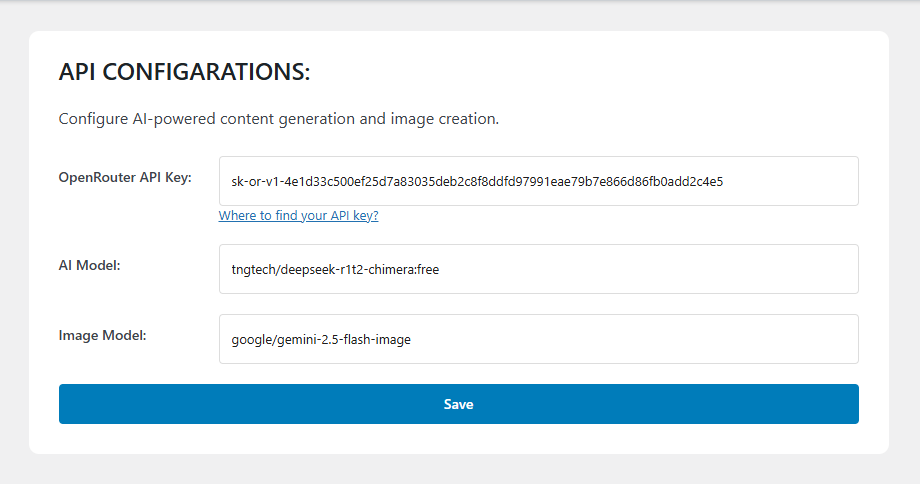
OpenRouter Settings
The plugin currently uses the OpenRouter API to power AI features.
You must configure an API key and select the appropriate models to use AI functionality.
API Key
Enter your OpenRouter API key to enable AI-powered features.
- You can generate an API key from your OpenRouter dashboard.
- The API key is required for both text and image generation.
Example:
sk-or-v1-xxxxxxxx
Text Model Name
Specify the AI model used for text generation, including:
- Blog content writing
- Text improvements and rewrites
- Summaries and AI chat responses
This should be a valid OpenRouter text model identifier.
Example:
anthropic/claude-3.5-sonnet
Save Changes
After configuring your settings, click Save Changes to apply them.
AI features will become available immediately once valid credentials are saved.
Notes
- An active OpenRouter account is required to use AI features.
- Incorrect model names or API keys may prevent AI responses.
- Support for additional AI providers will be added in future versions.