











Scrolling doesn’t always have to go down the page. Sometimes, moving side to side is a better fit—especially when you’re showing off image galleries, feature sections, or a step-by-step story.
Horizontal scrolling gives you a cleaner, more engaging way to guide visitors through your content. It’s a great choice for product highlights, visual storytelling, or any layout that needs a little extra motion to stand out.
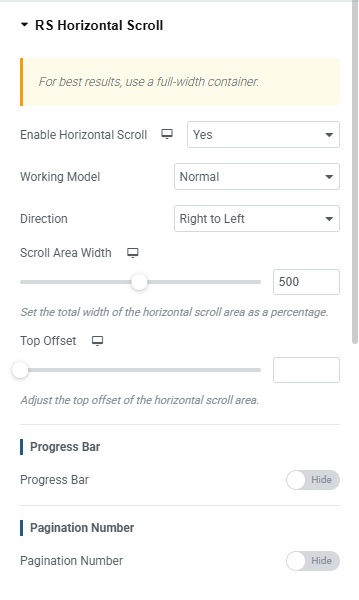
Configure RS Horizontal Scroll
Enable Horizontal Scroll Activates the horizontal scroll effect on the container. You will find three options: Default, Yes, and No.
Default: No effect is applied. Yes: Horizontal scroll is enabled on the container. No: Explicitly disables the effect on that breakpoint. This control is responsive, so you can enable or disable it per device (Desktop, Tablet, Mobile).
Working Model Defines how the horizontal scroll animation behaves. You will find two options: Normal and Masking.
Normal: Content scrolls horizontally as the user scrolls down the page. Masking: Items are revealed with a clipping effect as the user scrolls, treating each child container as a slide.
Direction Controls which way the content moves during scroll. You will find two options: Right to Left and Left to Right.
Right to Left: Default direction, content moves leftward as the user scrolls down. Left to Right: Content moves rightward as the user scrolls down.
Scroll Area Width Sets the total width of the horizontal scroll area as a percentage. A value of 500% means the content is 5× the screen width and the user scrolls through it all by scrolling down the page. Range is 10% to 1000%, default is 500%. Only available when Working Model is set to Normal.
Section Height Sets the height of the sticky scroll section when using the Masking model. This height applies to each child item. Only available when Working Model is set to Masking.
Top Offset Adjusts where the horizontal scroll area starts vertically, in pixels. Use this to account for a fixed header or sticky navigation so the scroll starts at the correct position on screen.
Progress Bar Shows or hides a progress indicator that fills as the user scrolls through the horizontal content, giving visitors a sense of how far through the section they are.
Pagination Number Shows or hides a counter (e.g. 2 / 5) that updates as the user scrolls through the horizontal content sections.