









Sticky Elements lets you keep a specific element fixed in place while scrolling, helping you create focused and interactive sections on your website. It’s a useful feature for things like sticky content, scroll animations, or highlighting key areas as visitors move through the page.
It adds more control to your layouts and makes your designs feel more dynamic and engaging.
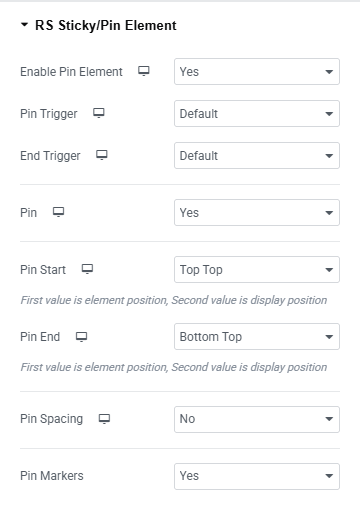
Configure Pin and Trigger Settings
Pin Trigger
Controls which element determines when the sticky behavior starts and ends. You will find two options included
Default: The sticky behavior starts and ends automatically based on the container’s position and viewport scroll.
Custom: Allows you to manually set the trigger element that controls when the sticky behavior starts or ends.
End Trigger
Default: Uses the container’s natural scroll boundary to stop the sticky behavior automatically.
Custom: Allows you to specify a custom element that determines where the sticky behavior should end. You need to enter the CSS class name of the target element that will act as the end trigger.
Pin
The Pin setting offers three options: True, False, and Custom.
True: Keeps the element fixed in the viewport while the page scrolls.
False: Allows the element to scroll normally with the page.
Custom: Defines specific scroll behavior, such as custom start/end positions, durations, or advanced triggers.
Pin Start
The Pin Start setting offers options like:
Top Top, Top Center, Top Bottom, Center Top, Center Center, Center Bottom, Bottom Top, Bottom Center, Bottom Bottom, and Custom.
Each option matches a part of the element (Top, Center, Bottom) with a part of the screen (Top, Center, Bottom) or uses a custom position.
Pin End
The Pin End setting offers similar options to Pin Start.
Pin Spacing
The Pin Spacing setting offers three options: True, False, and Custom.
True: Adds spacing below the pinned element equal to its height.
False: No space will be added for the pinned element.
Custom: Manually define how much space should be added where the element originally was.
Pin Markers
Pin Markers has two options: True and False.
True: Displays colored markers on the page to indicate the start and end of pinned elements visually.
False: Hides the markers from view.