











How to Create a Header Using RS Template Builder
You can replace the default theme header by creating a Header Template with RS Template Builder. This allows you to design a fully custom header using Elementor, with complete control over layout, styling, and content.
Steps to Create a Header Template
1. Go to the Dashboard
Navigate to Dashboard → RSTB Templates.
2. Add a New Template
Click Add New. A template creation popup will appear.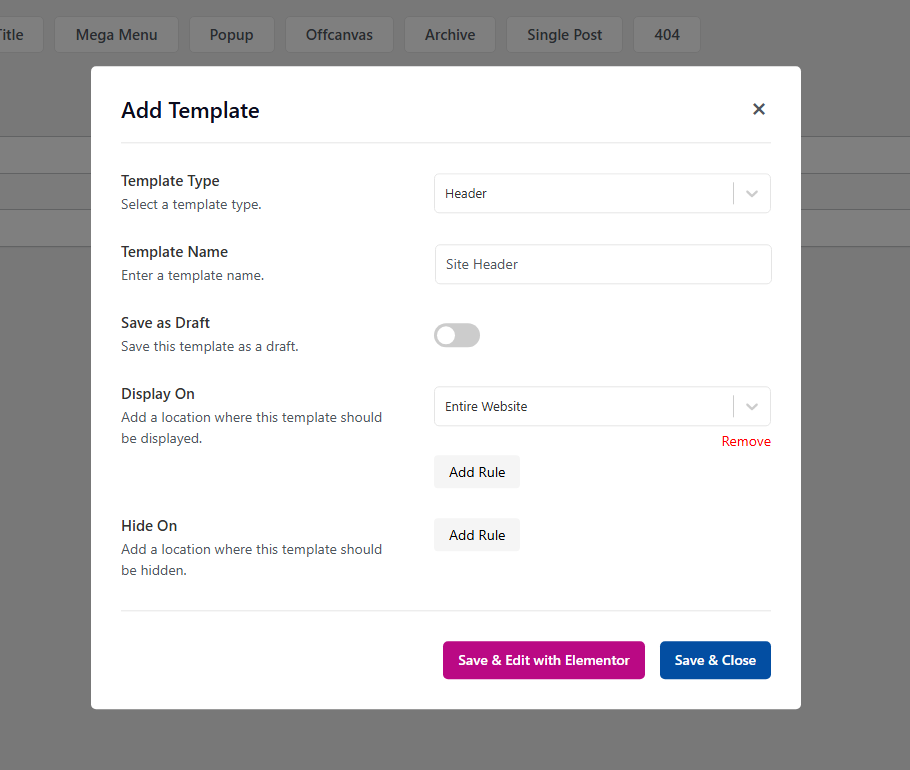
3. Choose Template Type
Select Header as the template type and enter a template name.
4. Set Display Rules
Configure the Display On rules to define where the header should appear.
5. Set Hide Rules (Optional)
Use the Hide On rules if you want to exclude the header from specific pages, posts, or other conditions.
6. Save or Edit with Elementor
After configuring the template settings, click Save & Edit with Elementor to start designing the template immediately using Elementor.
If you prefer to edit the template later, click Save & Close. The template will be saved and can be edited at any time from the RSTB Templates list.
Video Tutorial
For a visual walkthrough, watch the full video tutorial: