











How to Create an Offcanvas Using RS Template Builder
RS Template Builder allows you to create custom Offcanvas templates that can be used with the Offcanvas Widget in Elementor. You have full control over the layout, styling, and content using Elementor’s visual editor.
Steps to Create an Offcanvas Template
1. Go to the Dashboard
Navigate to Dashboard → RSTB Templates.
2. Add a New Template
Click Add New. A template creation popup will appear.
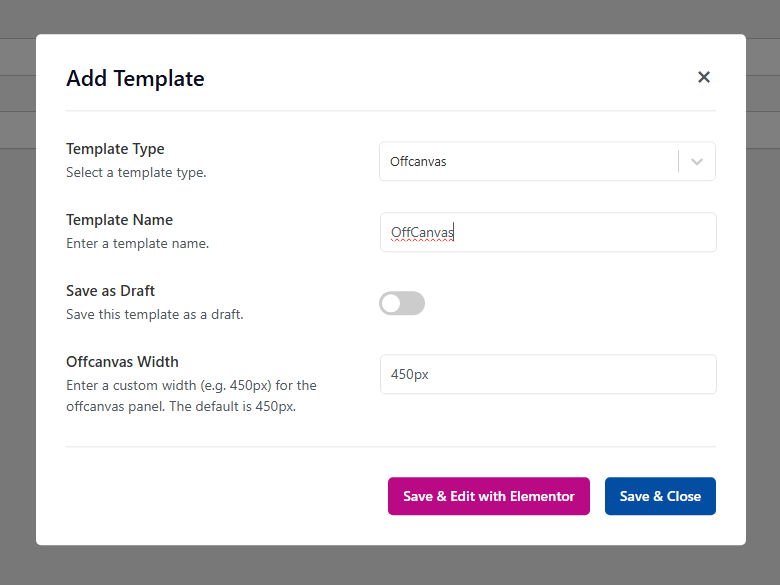
3. Choose Template Type
Select Offcanvas as the template type and enter a template name.
4. Set Offcanvas Width
Configure the offcanvas width according to your layout requirements.
5. Save or Edit with Elementor
After configuring the template settings, click Save & Edit with Elementor to start designing the offcanvas template immediately using Elementor.
If you prefer to edit the template later, click Save & Close. The template will be saved and can be edited at any time from the RSTB Templates list.
Using the Offcanvas Template in Elementor
1. When editing a page with Elementor:
2. Add the Offcanvas Widget to the page.
3. Select your created Offcanvas template from the widget settings.
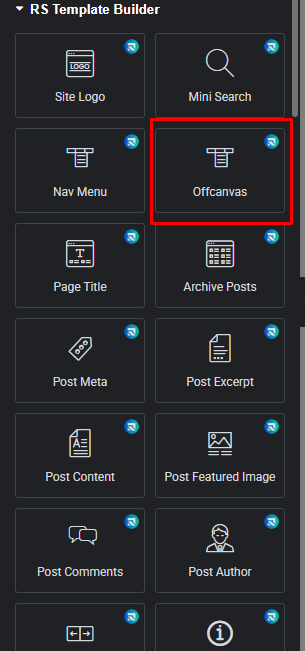
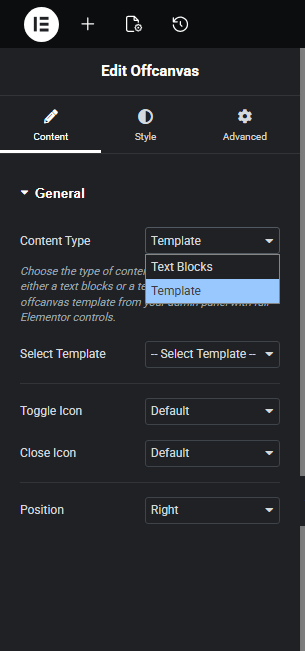
4. Configure the trigger and display options as needed.
5. The offcanvas will now display based on your widget configuration.
Video Tutorial
For a visual walkthrough, watch the full video tutorial: