











How to Create a Popup Using RS Template Builder
RS Template Builder allows you to create advanced and visually engaging Popup Templates using Elementor. You have full control over the popup layout, styling, and behavior, along with advanced options such as display conditions, triggers, and frequency controls.
Steps to Create a Popup
1. Go to the Dashboard
Navigate to Dashboard → RSTB Templates.
2. Add a New Template
Click Add New. A template creation popup will appear.
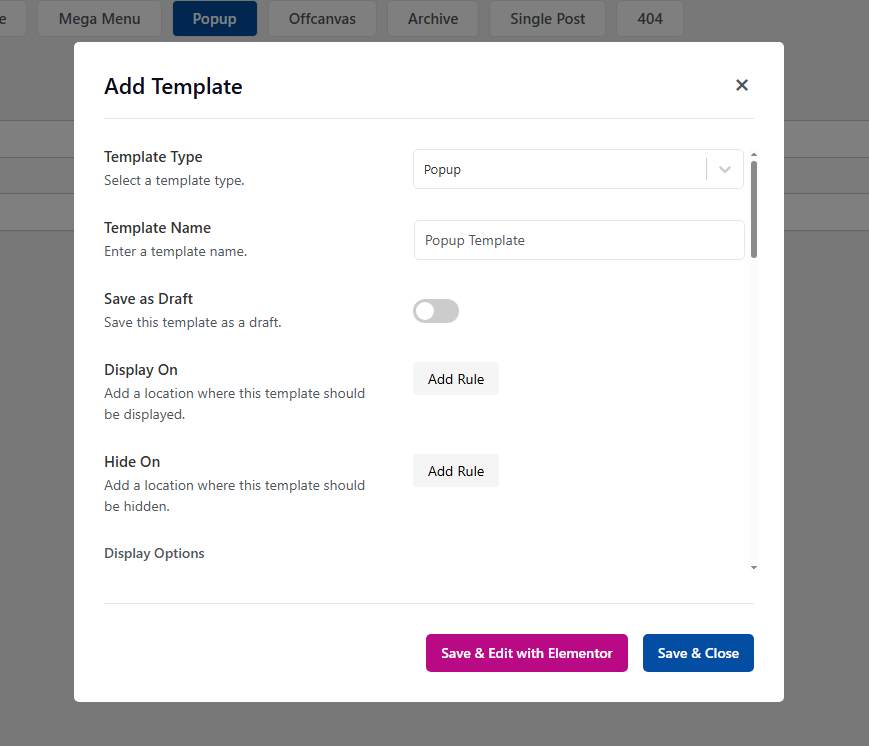
3. Choose Template Type
Select Popup as the template type and enter a template name.
4. Set Display Rules
Configure the Display On rules to define where the popup should appear (e.g., entire site, specific pages, posts, or custom post types).
5. Set Hide Rules (Optional)
Use the Hide On rules to exclude the popup from specific pages, posts, or other conditions.
Popup Display Options
6. Configure Display Options
You can customize the popup appearance and behavior using the following options:
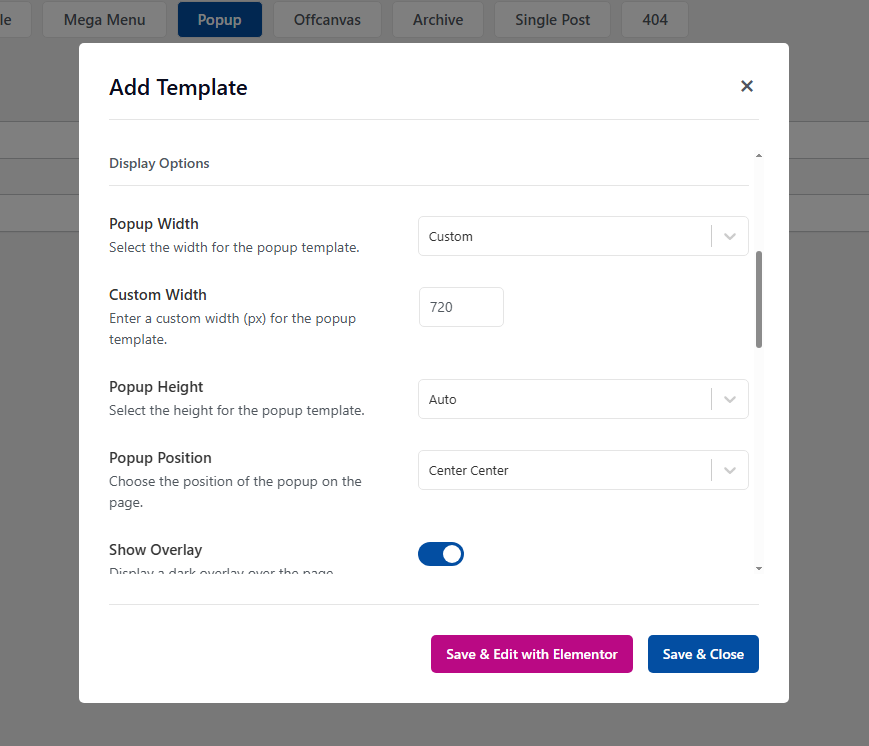
6.1 Popup width and height
6.3 Popup position
6.3 Enable or disable overlay
6.4 Enable or disable close button
Popup Display Triggers
7. Popup Display Triggers
Choose how and when the popup should be triggered:
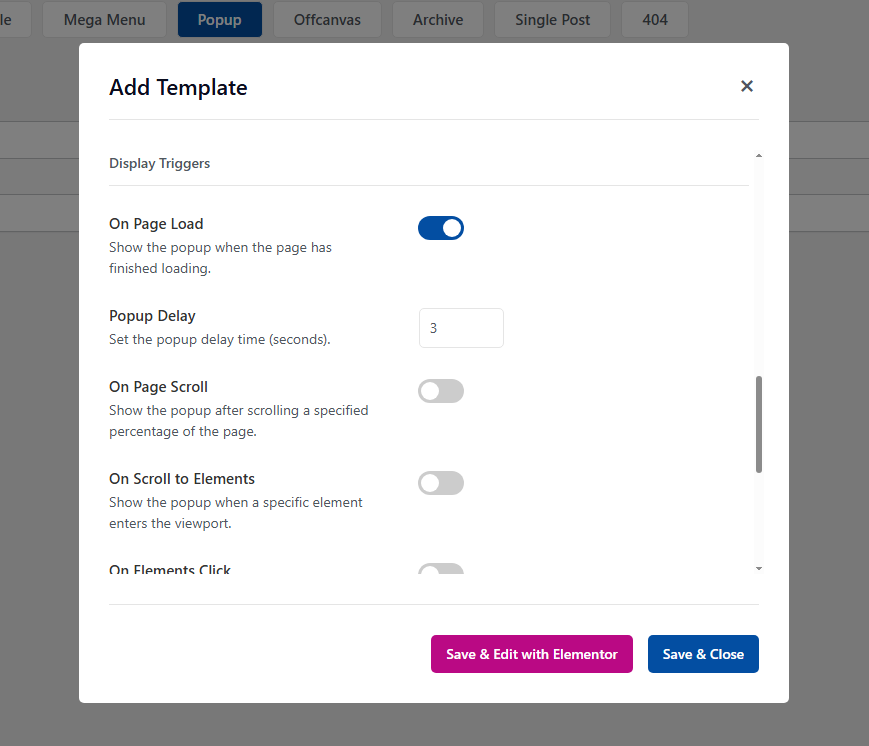
7.1 On Page Load
Displays the popup when the page loads. You can also set a delay time.
7.2 On Page Scroll
Displays the popup after the user scrolls a specified percentage of the page.
7.3 On Scroll to Element
Displays the popup when a specific element enters the viewport.
Enter a CSS selector (e.g., #my-id or .my-class) for the target element.
7.4 On Element Click
Displays the popup when a specific element is clicked.
Enter a CSS selector (e.g., #my-id or .my-class) for the clickable element.
Popup Display Frequency
8. Configure Display Frequency
Control how often the popup appears to users:
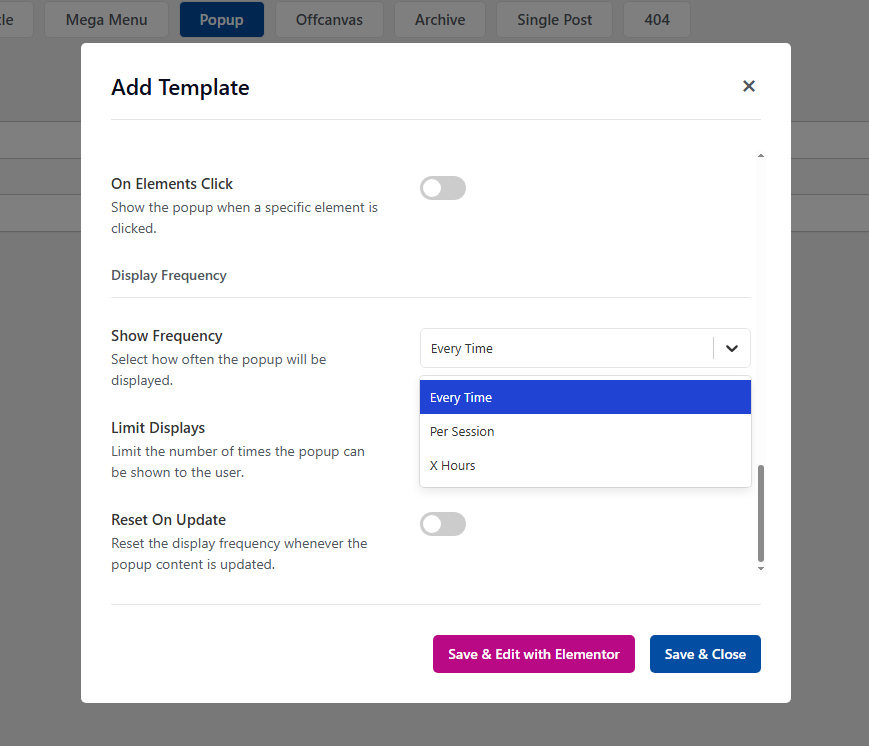
8.1 Show frequency: Show on every visit
8.2 Per Session: Show once per browser session
8.3 X-Hours: Show again after a specified number of hours
8.4 Display Limit: Limit the number of times the popup is shown to a user
8.5 Reset on Update: Reset frequency limits when the popup template content is updated
How to Design the Popup Close Button & Overlay
You can customize the Popup Close Button and Popup Overlay directly from the Elementor settings panel.
Steps to Customize Close Button & Overlay
1. Edit the Popup Template with Elementor
Open your popup template and click Edit with Elementor.
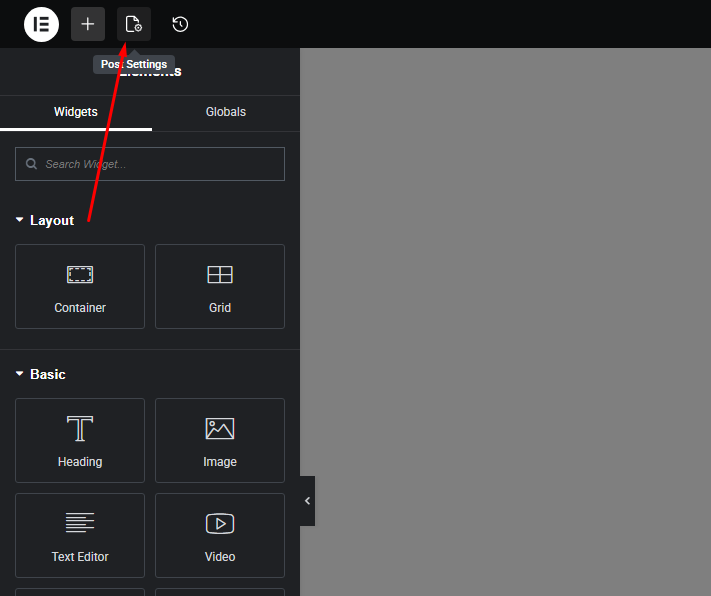
2. Open Post Settings
In the Elementor editor, go to the Post Settings panel from the Elementor control panel.
3. Configure Popup Options
Locate the Popup Close Button and Popup Overlay options.
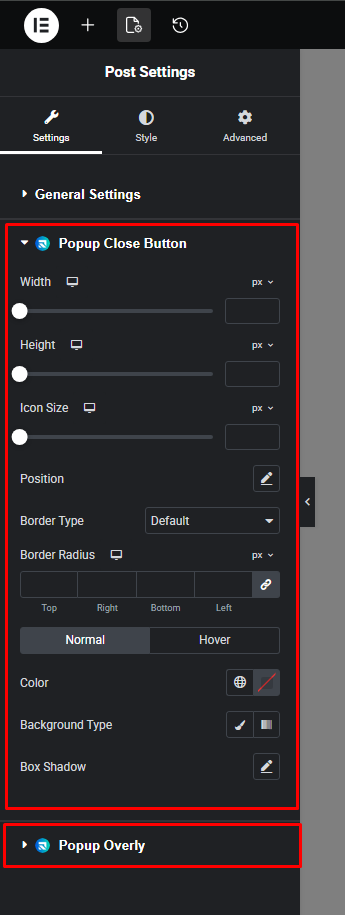
4. Customize as Needed
Enable or disable the close button and overlay, and adjust their settings according to your design requirements.
Video Tutorial
For a visual walkthrough, watch the full video tutorial: