











Cómo crear un pie de página usando RS Template Builder
Puede reemplazar el pie de página del tema predeterminado creando una plantilla de pie de página con RS Template Builder. Esto le permite diseñar un pie de página completamente personalizado usando Elementor, con un control total sobre el diseño, el estilo y el contenido.
Pasos para crear una plantilla de pie de página
1. ir al tablero
Navegue hasta el panel de control → Plantillas RSTB.
2 . Agregar una nueva plantilla
Haga clic en Agregar nuevo. Aparecerá una ventana emergente de creación de plantillas.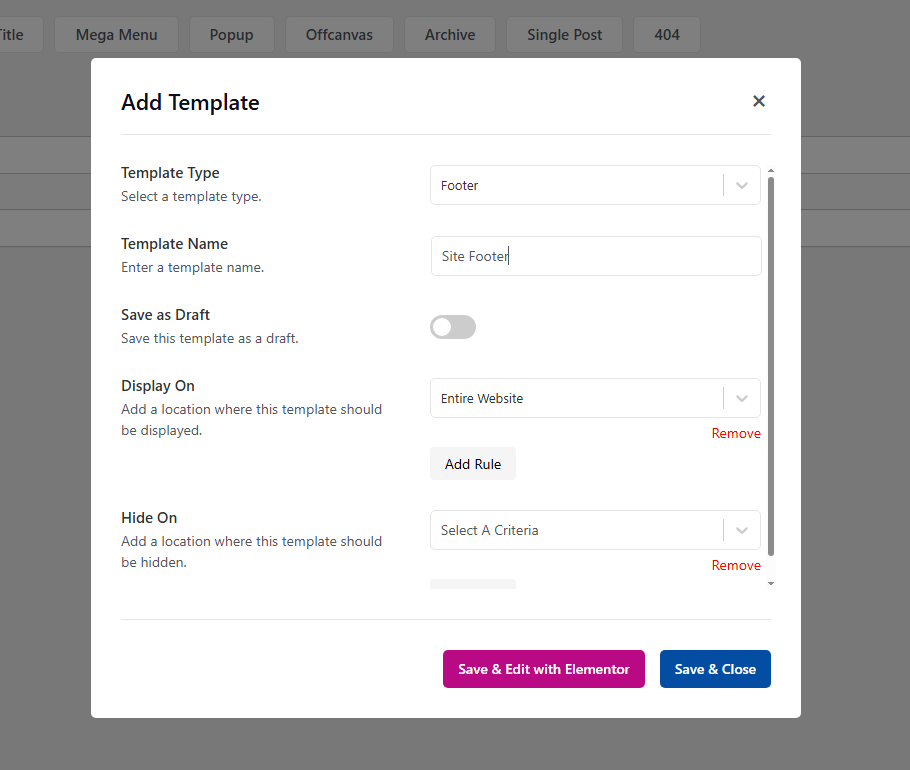
3. Elija Tipo de plantilla
Seleccione Pie de página como el tipo de plantilla e introduzca un nombre de plantilla.
4. Establecer reglas de visualización
Configure la pantalla en reglas para definir dónde debe aparecer el pie de página.
5. Establecer reglas de ocultación (opcional)
Utilice las reglas Ocultar en si desea excluir el pie de página de páginas, publicaciones u otras condiciones específicas.
6. Guardar o editar con Elementor
Después de configurar los ajustes de la plantilla, haga clic en Guardar y editar con Elementor para comenzar a diseñar la plantilla inmediatamente con Elementor.
Si prefiere editar la plantilla más tarde, haga clic en Guardar y cerrar. La plantilla se guardará y se podrá editar en cualquier momento desde la lista de plantillas de RSTB.
Vídeo tutorial
Para un tutorial visual, mira el video tutorial completo: